The Repeat Visitor block enables the author to control the visibility of its nested block(s) depending on how many times a visitor has previously visited the page.
In other words, you can show or hide certain content based on how many times someone has visited a particular page or post.
Think of it as a gate-keeper block that says:
- “If this person has visited more than 3 times, show them this special content.”
- OR “Only show this on the first 2 visits, and then hide it afterward.”
In this guide
Have a question?
Ask our AI assistantTo add the Repeat Visitor block, click the + Block Inserter icon and search for “Repeat Visitor”. Click to add the block to the post or page.
💡
Using your keyboard, you can also type /repeat visitor on a new line and press enter to quickly add a new Repeat Visitor block.
For more information, visit our detailed instructions on adding blocks.
When you first add the Repeat Visitor block into your post or page, it will look like this:
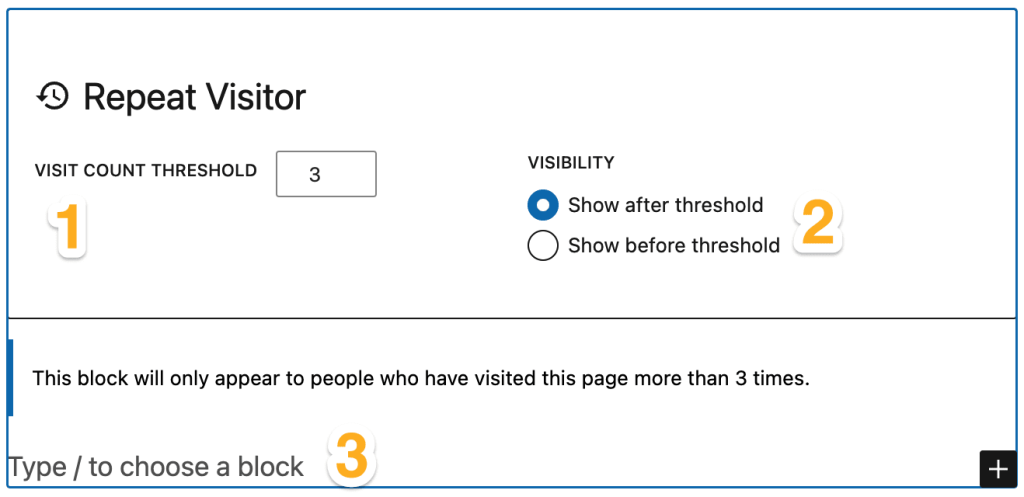
To set up the Repeat Visitor block:
- Set the visit count threshold. This is how many times a visitor has seen the page before the content appears (or disappears, based on the next step.)
- Visibility – should the content appear the first x times a visitor sees the page, or only show up after x times. For example, if you have your visitor count threshold set to 3, and visibility set to show before threshold, your visitor will see the content the first three times they visit. If you have visibility set to show after threshold, the visitor will only see the content after they have visited a page more than 3 times.
- Inside the Repeat Visitor block, add whatever you’d like to display — this could be text, an image, a call-to-action button, or a video. You can insert it by typing “/” followed by the block name, or by clicking the ( + ) icon and searching for the block you want to include. Remember, only the visitors who meet your threshold and visibility settings will see this content, so you can tailor messages, content or rewards specifically for returning visitors.
💡
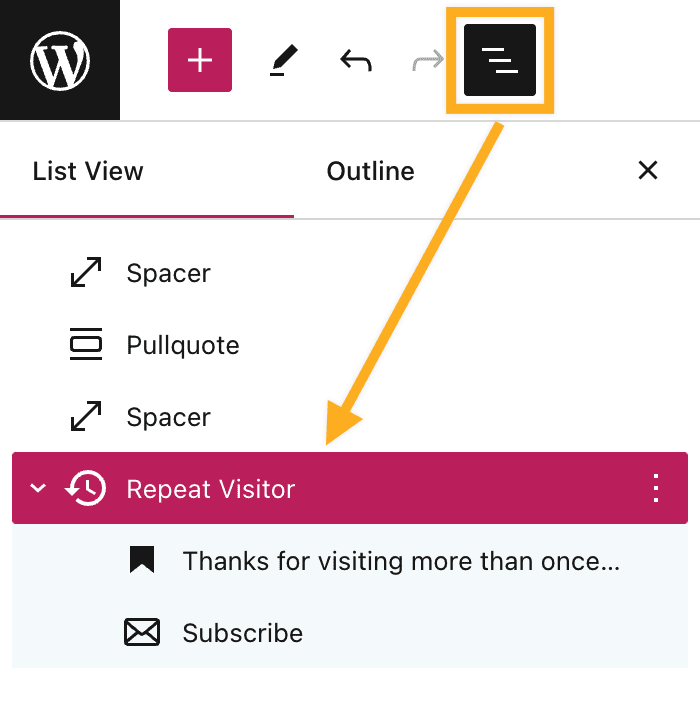
Use the List View to ensure the content you add is nested within the Repeat Visitor block.
When you click on the block, a toolbar of options will appear above or below it:
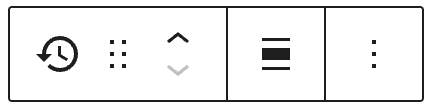
The Repeat Visitor block has the following options in its toolbar:
- Change block type.
- Drag the block.
- Move the block up or down.
- Align (Wide or Full Width)
- More options.
When you select a block, you will find additional block settings in the right sidebar. If you do not see the sidebar, you may need to click the Settings icon in the top-right corner to bring up the settings. This icon looks like a square with two uneven columns:

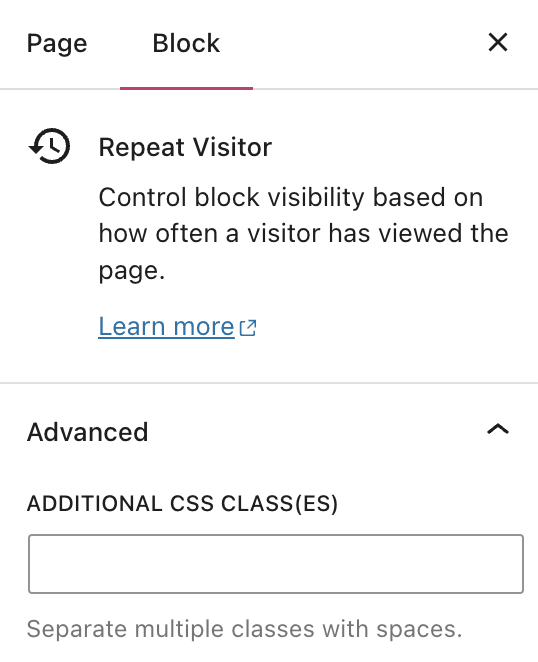
The Repeat Visitor block has very basic settings. You can add additional CSS classes through Advanced. Click the link below to learn more about advanced settings.
✅
The content you add within the Repeat Visitor block will be standard blocks with their own settings.