

Use the Story block to combine photos and videos to create an engaging, tapable, full-screen slideshow on your site’s posts and pages. In this guide you’ll learn how to add stories to your WordPress site.
In this guide
Have a question?
Ask our AI assistantOn WordPress, stories appear as a block in a blog post. The Story block displays a preview of the story content where the first slide is the cover image. Stories can be a great method to display:
- Step-by-step guides and tutorials
- Recipes
- Showcasing progress on your DIY and art projects
- Travel journals
- and more
Here is an example of how the Story block looks:


When a visitor to your site clicks on the story preview, the story autoplays in a full-screen view. Visitors can reply to your story by commenting on or liking the post.
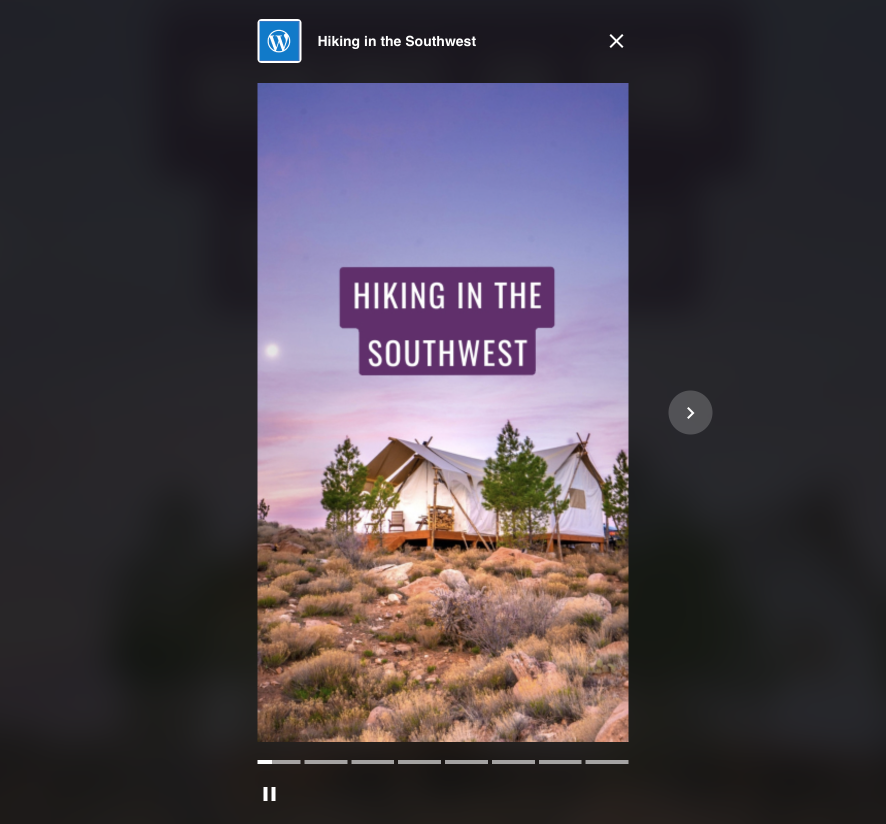
Stories on WordPress are different from stories on other platforms in a few ways.
- Posts with Stories won’t disappear after 24 hours.
- The story content can be added to and edited after publishing.
- Anyone visiting your site can view the Story.
- You can share your story on any platform using the post permalink.
You can create a story using the WordPress editor on the web (not the mobile app).
To add a Story block, click the + block inserter button and search for the Story block. You can also quickly type /story and press enter.
For more information, visit our detailed instructions on adding blocks.
When you add a Story block, you’re given two options:
- Upload: Add new media or multiple media files from your computer to your website. Supported media are images and videos.
- Select Media: Choose from:
- Existing images in your site’s Media.
- Your phone, via the Jetpack Mobile App.
- Your Google Photos account.
- The Pexels Free Photo library.
- The Openverse library of free photos.
The order of the images in your story is determined by the order in which you select the images.

