
Instaread Audio Player — Text-to-Speech & Article-to-Audio
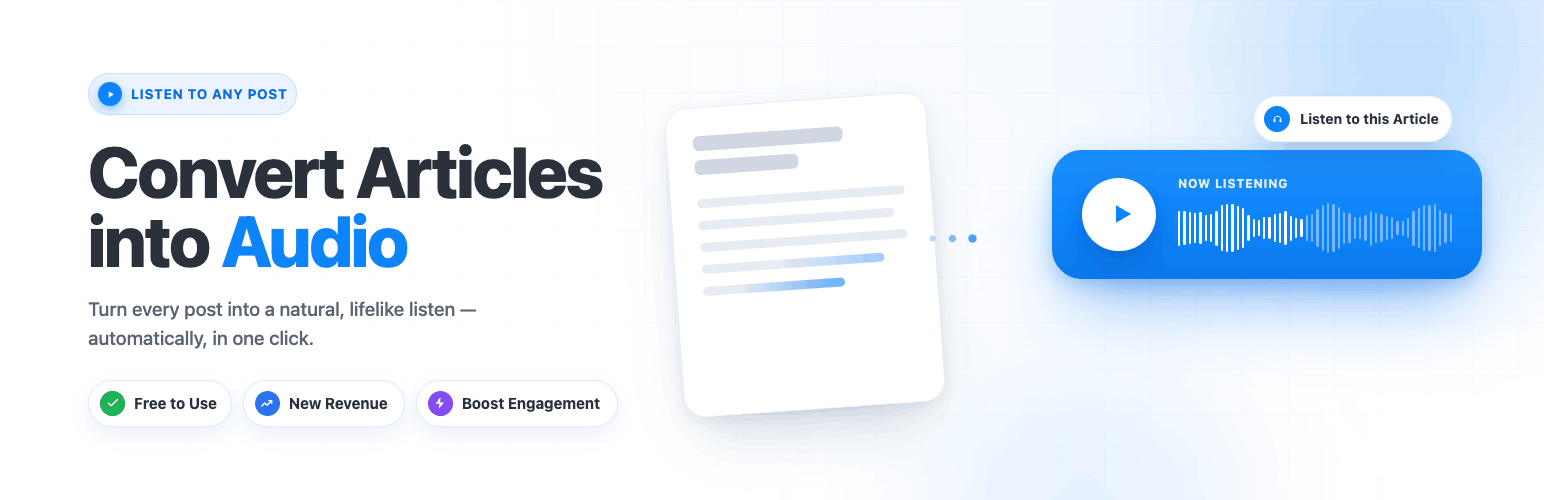
Trusted by 200+ brands and creators, Instaread Audio Player converts your WordPress articles, blog posts, and pages into natural-sounding audio and embeds an audio player on your content. The plugin is provided at no cost to publishers; Instaread operates on an ad-supported model, where revenue is generated through optional audio advertising and shared with the publisher.
The plugin is intended for publishers who want to add an audio version of their text content to improve accessibility and offer an alternative way to consume articles.
Features
- Automatic text-to-speech conversion for posts, pages, and custom post types
- Embedded audio player with waveform visualizer
- Color and style customization to match your site’s branding
- Voice library with multiple natural-sounding voices; voice cloning available on request
- Site-specific pronunciation dictionary for proper nouns and brand names
- Analytics dashboard with listener metrics
- Audio podcast feed generation for distribution to podcast platforms
- Playlist support for serialized content
- Subscribe-to-listen flow for paywalled content
- Optional ad suppression for logged-in subscribers
- Works with standard WordPress themes
- Compatible with major page builders (Elementor, Divi, Beaver Builder, Gutenberg)
- Mobile-responsive player layout
- Asynchronous player loading — does not block page rendering
How It Works
- Install and activate the Instaread Audio Player plugin
- Connect your site through the onboarding wizard
- Choose your voice, customize the player appearance, and add the required ads.txt lines
- Submit your site for approval
- Once approved, your articles are converted to audio and the player appears on every post
Who Is This For?
- News publishers who want to offer an audio version of their articles
- Bloggers who want to make content accessible to audio-first audiences
- Content-heavy websites looking to add audio without a separate production pipeline
- Magazine and media sites that want an audio version of their archive
Pricing and Monetization
The plugin is provided at no cost to publishers. Instaread’s revenue comes from optional audio advertising played within the audio stream; publishers receive a share of that revenue.
External Services
Instaread Audio Player connects to external services operated by Instaread (https://instaread.co). By installing this plugin, you agree to the Instaread Terms of Service and Privacy Policy.
This plugin connects to Instaread’s external audio service. Instaread’s hosted service performs article-to-audio processing, audio hosting, player delivery, ad serving, analytics, and revenue-share reporting. These functions are not performed locally by the WordPress plugin.
When enabled by the site administrator, the plugin may send article URLs, article text, site domain, and basic playback/ad event data to Instaread for the purpose of generating audio, serving the audio player, measuring usage, and supporting ad monetization.
Use of the Instaread service is subject to Instaread’s Terms of Use (https://instaread.co/terms) and Privacy Policy (https://instaread.co/privacy).
Instaread does not use your content to train AI models. You retain all intellectual property rights.