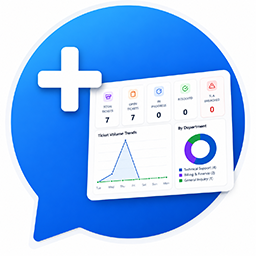
LucrativeIt Support Ticket Plus

LucrativeIt Support Ticket Plus is a production-ready WordPress plugin for managing customer support requests from creation through resolution.
Live demo / support portal: https://wpticket.lucrativeit.com/lucrativeit-support-ticket-plus/
Features: * Auto-generated ticket numbers with SLA tracking * Seven status states and four priority levels * Department-based auto-assignment with round-robin load balancing * Public replies and internal notes * Secure file attachments * In-app notifications * Permission management built on your existing WordPress roles (no extra roles created) * User and department management * SMTP email configuration * 11 customizable email notification templates * Public knowledge base * Reports dashboard
Optional Pro add-on (separate plugin, not required): email-to-ticket webhook, Gmail inbound polling, AI reply suggestions, and Google login.
Author: LucrativeIt.com(zahiislink@gmail.com)
Frontend portal page
Customers and agents use a WordPress page on your site that contains a shortcode. The plugin creates this page automatically on activation.
Automatic setup (recommended)
On first activation, the plugin publishes a page titled Support Portal with this shortcode:
[lucrativeit_support_portal]
- Go to Pages → All Pages in WordPress admin
- Find Support Portal and click View to open the frontend
- Add the page to your site menu (Appearance → Menus) so customers can find it
Logged-in users see the ticket dashboard. Visitors who are not logged in see a login prompt (or registration link if enabled under Support Ticket Plus → Settings → Auth).
Manual setup
If the portal page was deleted or you want a custom URL/slug:
- Go to Pages → Add New
- Enter a title (e.g. Support, Help Center, or My Tickets)
-
In the page content, add this shortcode:
[lucrativeit_support_portal]
-
Click Publish
- Optional: set a short slug such as
supportorhelpunder Permalink - Add the page to your navigation menu
The plugin stores the page ID automatically when it creates the page. If you create your own page manually, ticket links and email notifications work best when that page uses the [lucrativeit_support_portal] shortcode.
Knowledge base shortcode (optional)
To show only the knowledge base on any page (without the full portal):
[lucrativeit_knowledge_base]
You can also open the knowledge base inside the portal at:
yoursite.com/lucrativeit-support-ticket-plus/?lit_view=knowledge-base
(Replace the path with your portal page slug.)
Portal URL examples
The portal page is created with the slug lucrativeit-support-ticket-plus:
- Dashboard:
https://yoursite.com/lucrativeit-support-ticket-plus/ - My tickets:
https://yoursite.com/lucrativeit-support-ticket-plus/?lit_view=tickets - Create ticket:
https://yoursite.com/lucrativeit-support-ticket-plus/?lit_view=create - View ticket #12:
https://yoursite.com/lucrativeit-support-ticket-plus/?lit_view=ticket&lit_ticket=12 - Notifications:
https://yoursite.com/lucrativeit-support-ticket-plus/?lit_view=notifications
Staff with agent permissions see the same portal with additional options (assign tickets, internal notes, etc.).
Roles & permissions
This plugin does not create its own WordPress roles. Instead, you grant the plugin’s permissions to the WordPress roles you already use.
How it works
- Every logged-in user is a customer by default — they can create and view their own tickets and see their dashboard automatically, with no permission required.
- Go to Support Ticket Plus → Roles to see a grid of your existing WordPress roles (Administrator, Editor, Author, Subscriber, custom roles, etc.) with a checkbox for each staff permission: Tickets, Users, Roles, Departments, Reports, Settings, and Knowledge Base.
- Tick the permissions a role should have and click Save Permissions.
- Administrators always have full access and cannot be changed on this screen.
- The Tickets permission grants staff access — the ability to see, manage, and be assigned all tickets. Roles without it remain customers who only see their own tickets.
Defaults
Until you save the Roles screen, staff-capable roles (Editor, Author, Contributor, and any custom roles) are granted the Tickets permission by default. Subscriber is excluded on purpose so that front-end registrants stay customers — they can still create and view their own tickets and use their dashboard, they just can’t see other people’s tickets. Grant a role the Tickets permission to make it support staff.
Front-end registration
Visitors who register from the front end use the same flow as wp-login.php?action=register: they choose a username and email, WordPress validates the signup, emails login details, and does not log them in automatically. New accounts are assigned the Subscriber role and treated as customers. Accounts created from the WordPress admin keep whatever role the administrator selects.
Important: For front-end registration to work, WordPress must allow new sign-ups. Go to Settings → General and enable the Membership → «Anyone can register» checkbox. If this is disabled, the WordPress registration form (used by the portal’s Register link) will reject new accounts.