
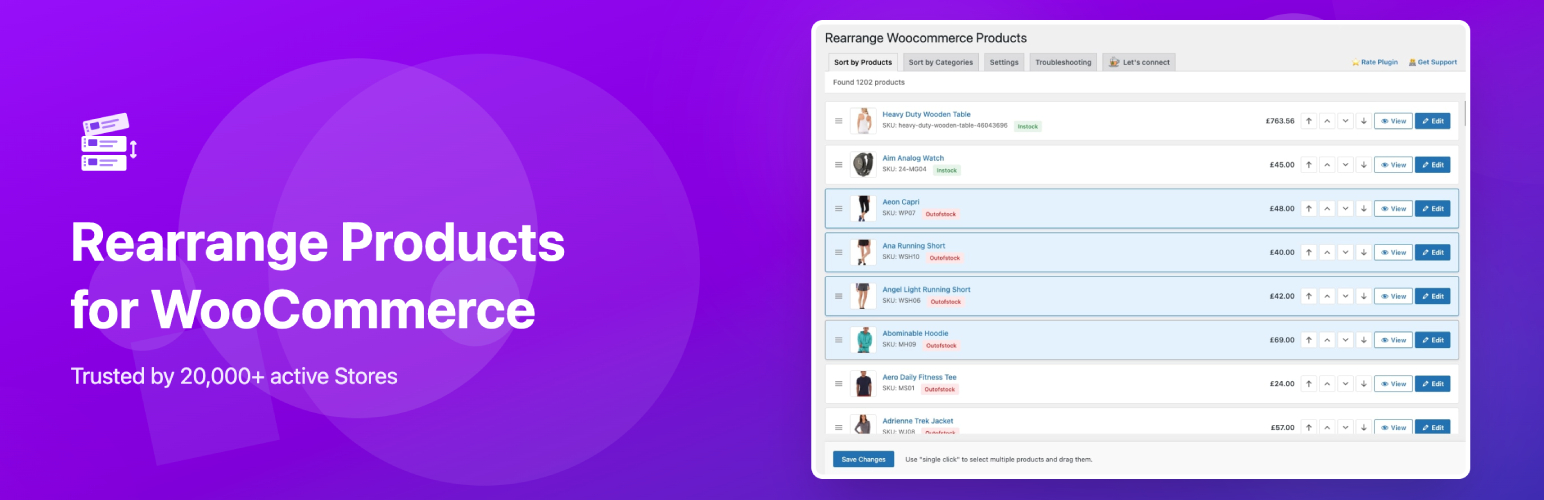
Take Full Control of Your WooCommerce Product Sort-Order
Do you want to decide which products appear first in your WooCommerce shop? Rearrange Products for WooCommerce gives you full control over product ordering so you can highlight your best-selling, featured, or new products exactly where you want them.
This plugin is built specifically for WooCommerce stores and helps improve both customer experience and store performance.
With an easy-to-use drag-and-drop interface, you can:
- Reorder/Rearrange products on your main Shop page.
- Set custom product order for specific categories and sub-categories.
- Select multiple products at once and move them together.
- Manage product display without touching any code.
Why Choose Rearrange Products for WooCommerce?
1. 🛒 Better Shopping Experience Help customers find the right products faster by displaying them in a logical and attractive order.
2. 👀 More Visibility for Key Products Promote best-selling, featured, or seasonal products by placing them at the top.
3. 📈 Higher Conversions Showing the right products first can lead to more clicks and increased sales.
4. ⚡ Bulk Sort in One Click (Pro) Sort all your products at once by best-selling, ratings, price, stock status, and more — no need to drag them one by one.
5. 💾 Never Lose Your Work (Pro) Save your product arrangements as reusable presets. Switch between different layouts instantly — perfect for seasonal promotions and A/B testing.
Free Features
- Fully compatible with WooCommerce.
- Simple drag-and-drop product sorting.
- Multi-select products and move them together.
- Custom sorting for categories and sub-categories.
- Works with WooCommerce shortcodes.
- Lightweight plugin with fast performance.
- No coding knowledge required.
Pro Features
Unlock the full power of product management with Rearrange Products for WooCommerce Pro:
⚡ Smart Sort — Bulk Sort Products in One Click Stop dragging products one by one. Smart Sort lets you reorder your entire catalog or a specific category in one shot based on:
- Best Selling — Put your top sellers front and center.
- Most Rated — Showcase products with the best reviews.
- Price (Low to High / High to Low) — Organize by price for easy browsing.
- In Stock First — Always show available products at the top.
- Latest / Oldest — Highlight new arrivals or evergreen products.
- On Sale — Push sale items to the top to drive conversions.
- Shuffle — Randomize your product display for a fresh look.
💾 Sort Presets — Save and Reuse Arrangements Create, save, and switch between different product arrangements effortlessly:
- Save your current product order as a named preset with a description.
- Apply any saved preset with a single click to instantly rearrange products.
- Duplicate presets to create variations without starting from scratch.
- Search and filter through your presets for quick access.
- Works with both global and category-specific arrangements.
- Perfect for seasonal layouts, holiday promotions, flash sales, and A/B testing different product orders.
🔄 Import / Export — Portable Product Arrangements Move your product arrangements between sites or share them with your team:
- Export global, category-specific, or preset arrangements as JSON files.
- Import arrangements on any site — products are matched by SKU for cross-site compatibility.
- Migrate your product order when moving to a new domain or staging environment.
- Detailed import reports showing matched, skipped, and total products.
- Supports files up to 10MB for large catalogs.
🚀 Get Rearrange Products for WooCommerce Pro
Make your WooCommerce store easier to browse and more effective at selling. Start organizing your products the way you want and give your customers a better shopping experience.
Note: WooCommerce must be installed and activated before using this plugin.
Important Notes
- If you deactivate this plugin, any product rearrangements you’ve made will be turned off. You can restore them at any time by reactivating the plugin.
- If you delete or uninstall this plugin, all product rearrangements will be permanently removed and cannot be recovered.
Troubleshooting
If your custom product order is not showing on the Shop page:
- Go to Admin → Appearance → Customize
- Select WooCommerce → Product Catalogue
- Find Default Product Sorting
- Set it to “Default sorting (custom ordering + name)”
If you have a large number of products and changes are not saving
This may be due to server limits. Ask your hosting provider to increase:
- memory_limit
- max_execution_time
After updating these settings, try saving the product order again.
If you are using a page builder plugin (Elementor, Divi, WPBakery, etc.)
Page builder plugins often have their own product query settings that work independently of WooCommerce’s default sorting.
To use custom sort order with page builders:
- Check your page builder’s product widget/module for sorting options
- Look for a «custom order» or «menu order» option in the product display settings
- If you need help, contact your page builder’s support team for guidance on their specific settings
Note: This plugin works seamlessly with standard WooCommerce shop pages, category pages, and WooCommerce shortcodes.
Filing a support request?
Go to Admin → Rearrange Products → Troubleshooting and open the «System Status / Diagnostic Info» section. Click «Copy to Clipboard» and paste the information into your support ticket. This helps us diagnose issues much faster.