
BeePixel Header Footer Builder for Elementor
·
Build custom headers and footers with Elementor. Includes display conditions, WooCommerce support, user role targeting, and announcement bars.
Évaluations
Version
1.0.4
Installations actives
20
Mis à jour récemment
Jun 5, 2026
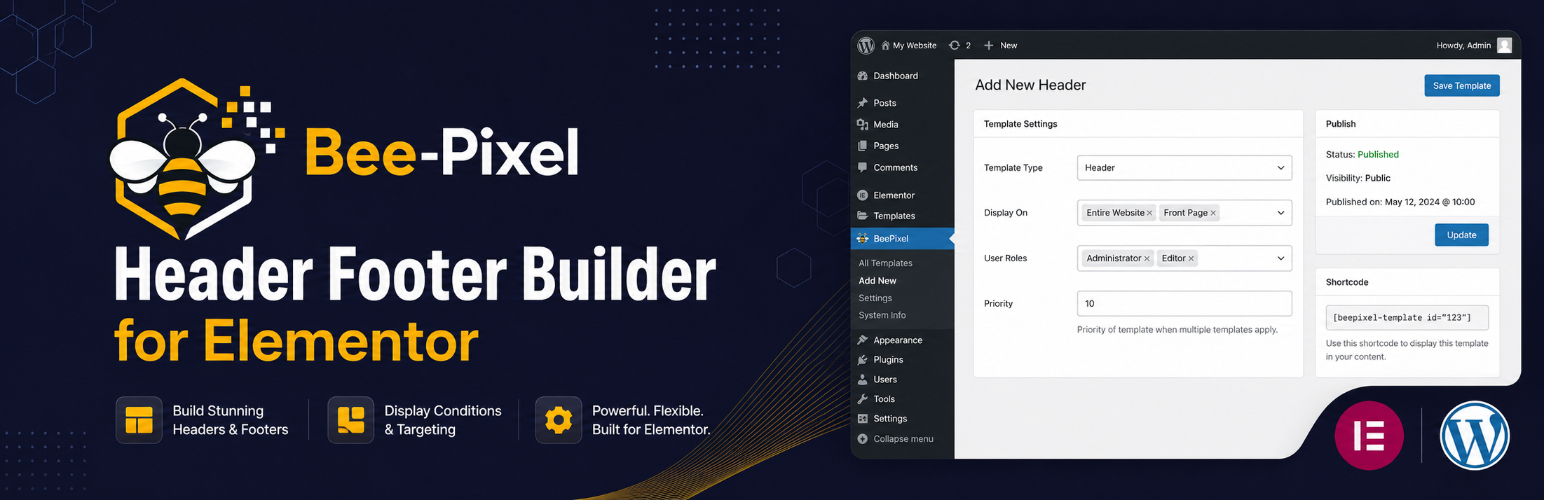
BeePixel Header Footer Builder for Elementor lets you design and manage custom header and footer templates using the Elementor page builder. No coding required.
💖 This plugin is free. If it helps your project, consider supporting on Patreon.
Template Types
Create four types of templates:
- Header — Replaces your theme’s default header
- Footer — Replaces your theme’s default footer
- Before Header — Adds a zone above the header (useful for announcement bars)
- After Footer — Adds a zone below the footer
Display Conditions
Control where each template appears:
- Entire Website
- Front Page / Homepage
- All Singular Posts & Pages
- All Posts
- All Pages
- All Archive Pages
- Search Results
- 404 Error Page
- WooCommerce Shop Page
- WooCommerce Product Pages
- WooCommerce Cart Page
- WooCommerce Checkout Page
Exclude Specific Pages
Enter page or post IDs to prevent a template from showing on specific pages.
User Role Targeting
Show templates based on user status:
- All Users
- Logged In Users Only
- Logged Out / Guest Users Only
- Specific WordPress roles (Administrator, Editor, Subscriber, etc.)
Additional Options
- Canvas Template — Remove the theme wrapper for full-width Elementor designs
- Shortcode — Embed any template anywhere using
[bphfe_template id="POST_ID"]
Theme Compatibility
Works with all WordPress themes including Astra, GeneratePress, OceanWP, Hello Elementor, Neve, Kadence, Blocksy, Storefront, and others.
How to Use
- Install and activate the plugin (Elementor must be active)
- Go to BeePixel HFE in your WordPress dashboard
- Click Add New, enter a name, and click Add New
- Design your template in Elementor
- In the Template Settings meta box, set the template type and display conditions
- Publish — your template is now live
Shortcode Usage
Find the template post ID in the URL when editing (e.g. post=123), then use:
[bphfe_template id="123"]