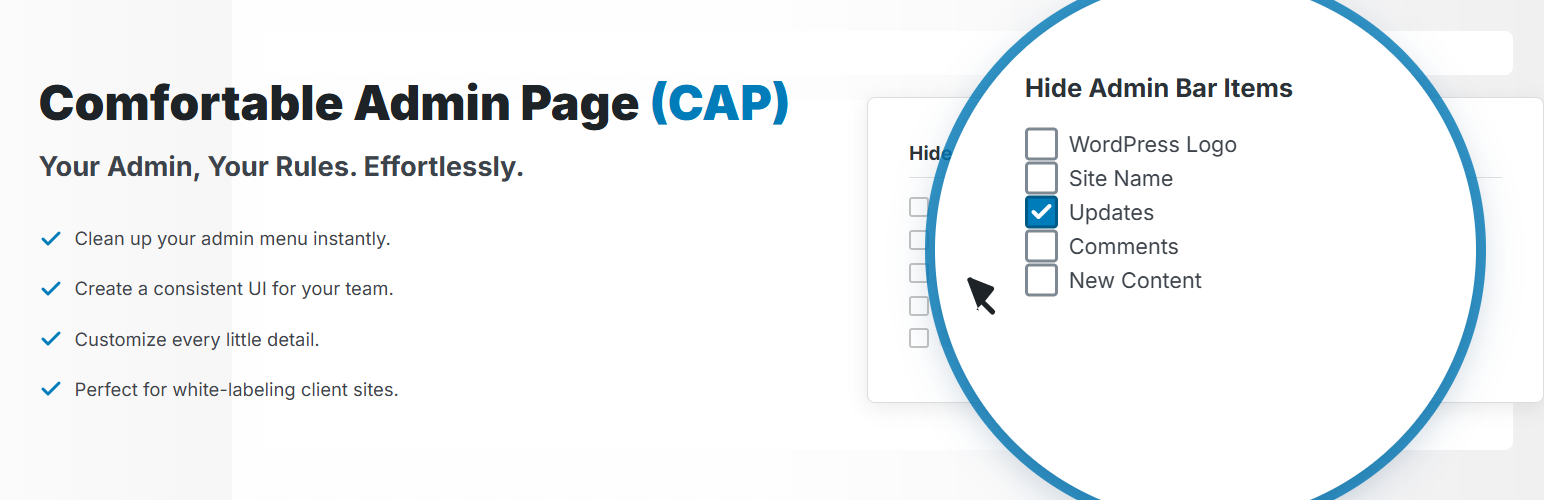
“Comfortable Admin Page” is a plugin that provides a one-stop solution for those “hard-to-reach” settings in the WordPress admin area. It helps you customize a user-friendly and comfortable admin screen, not only for personal blogs but also for client websites and in-house corporate sites. With this single plugin, you can perform a wide range of customizations, including the following:
Role-Based Settings * New Feature: Individually configure admin screen display and functionality for each WordPress user role (e.g., Administrator, Editor, Author). This allows you to provide an optimized admin experience for each user when managing a site with multiple people.
Left Menu * Individually hide menu items (supports auto-detection of items added by plugins and themes). * Change menu labels (e.g., change “Media” to “Images”). * Add custom links to any admin page or external site to the left menu. * Change the icons for each menu item. * Adjust the height of separator lines in the menu.
Admin Bar * Move the admin bar to the bottom of the screen. * Individually hide admin bar items (supports auto-detection of items added by plugins). * Add links to the previous and next posts on the edit screen. * Change the background and text color of the admin bar. * Change the login name display format to use either “Display Name” or “Username”.
Dashboard * Hide unnecessary dashboard widgets (supports auto-detection of items added by plugins).
Post & Page List * Hide the hover menu items that appear on each row (Edit, Quick Edit, etc.). * Add filtering functionality by “Tags” or “Author”. * Add columns for “ID,” “Slug,” “Last Modified Date,” and “Character Count,” and make them sortable. * Adjust the width of each column in pixels. * Set custom text and background colors for each post status (Published, Draft, etc.).
Editor Screen * Individually hide “Embed” blocks in the Block Editor. * Freely set the autosave interval for posts in minutes. * Change the tag selection UI from an input format to a checkbox format. * Limit the number of post revisions or disable them completely. * Increase the height of the category and tag selection boxes to reduce scrolling. * Add useful shortcodes (e.g., current year/month/day) and enable them in post titles. * Add custom CSS for the admin screen.
Images * Individually stop the generation of specific image sizes (thumbnail, medium, etc.) upon upload. * Add a filtering feature by user in the Media Library. * Add columns like “ID,” “Slug,” and “File Size” to the Media Library and make them sortable.
Widgets * Disable the block-based widget editor and revert to the classic widgets. * Disable unnecessary default classic widgets. * Enable shortcodes in the Custom HTML widget.
Users * Add “ID” and “Display Name” columns to the user list screen. * Hide high-risk items from bulk actions and hover menus. * Hide the “Change role to…” dropdown menu.
Login Screen * Change the WordPress logo on the login screen to a custom image and URL. * Change the background color. * Hide unnecessary links (e.g., “Back to site,” language switcher). * Specify redirect URLs for after login and logout.
Admin Screen Settings * Hide the “Help” and “Screen Options” tabs at the top of the admin screen. * Hide the admin footer text (e.g., “Thank you for creating with WordPress.”). * Individually disable update notifications for WordPress core, themes, and plugins. * Individually disable or adjust core WordPress features, such as disabling emoji scripts, hiding version information, etc.
Quick Settings * Load preset configurations like “Recommended Settings” to apply them in bulk. * Copy the settings of one user role to another role (or to all roles).
Reset * Export (backup) and import (restore) all settings of this plugin. * Reset all settings to their initial state.
For detailed information and usage instructions, please visit the official website.