
BeePixel Header Footer Builder for Elementor
·
Build custom headers and footers with Elementor. Includes display conditions, WooCommerce support, user role targeting, and announcement bars.
Votazioni
Versione
1.0.4
Installazioni attive
20
Ultimo aggiornamento
Jun 5, 2026
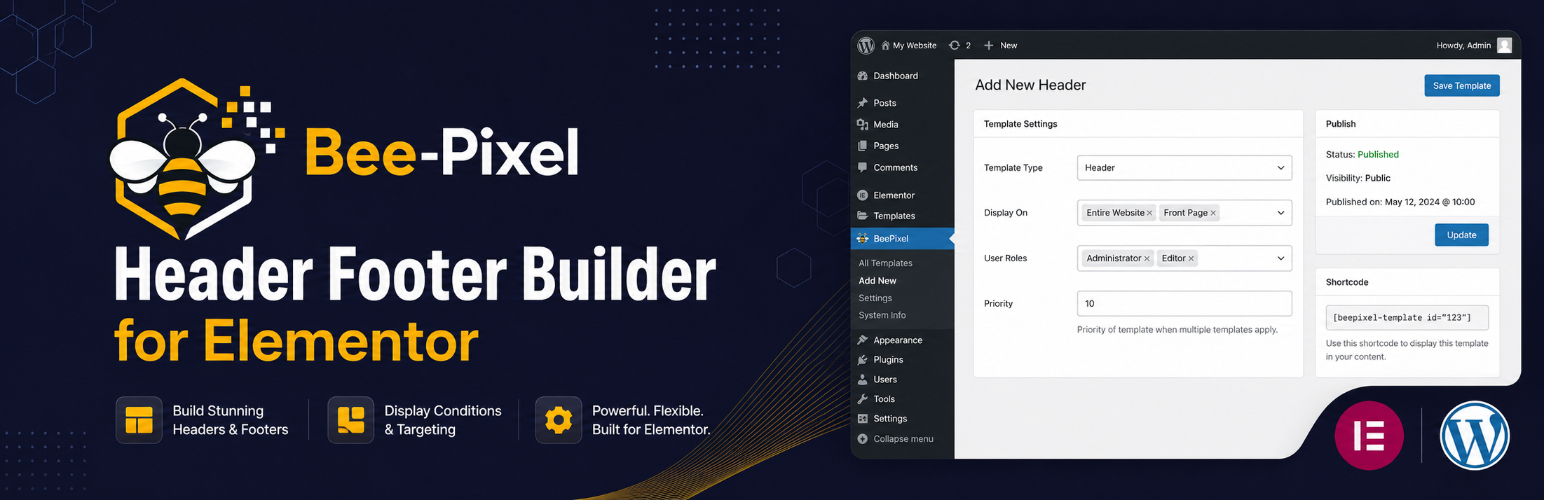
BeePixel Header Footer Builder for Elementor lets you design and manage custom header and footer templates using the Elementor page builder. No coding required.
💖 This plugin is free. If it helps your project, consider supporting on Patreon.
Template Types
Create four types of templates:
- Header — Replaces your theme’s default header
- Footer — Replaces your theme’s default footer
- Before Header — Adds a zone above the header (useful for announcement bars)
- After Footer — Adds a zone below the footer
Display Conditions
Control where each template appears:
- Entire Website
- Front Page / Homepage
- All Singular Posts & Pages
- All Posts
- All Pages
- All Archive Pages
- Search Results
- 404 Error Page
- WooCommerce Shop Page
- WooCommerce Product Pages
- WooCommerce Cart Page
- WooCommerce Checkout Page
Exclude Specific Pages
Enter page or post IDs to prevent a template from showing on specific pages.
User Role Targeting
Show templates based on user status:
- All Users
- Logged In Users Only
- Logged Out / Guest Users Only
- Specific WordPress roles (Administrator, Editor, Subscriber, etc.)
Additional Options
- Canvas Template — Remove the theme wrapper for full-width Elementor designs
- Shortcode — Embed any template anywhere using
[bphfe_template id="POST_ID"]
Theme Compatibility
Works with all WordPress themes including Astra, GeneratePress, OceanWP, Hello Elementor, Neve, Kadence, Blocksy, Storefront, and others.
How to Use
- Install and activate the plugin (Elementor must be active)
- Go to BeePixel HFE in your WordPress dashboard
- Click Add New, enter a name, and click Add New
- Design your template in Elementor
- In the Template Settings meta box, set the template type and display conditions
- Publish — your template is now live
Shortcode Usage
Find the template post ID in the URL when editing (e.g. post=123), then use:
[bphfe_template id="123"]