
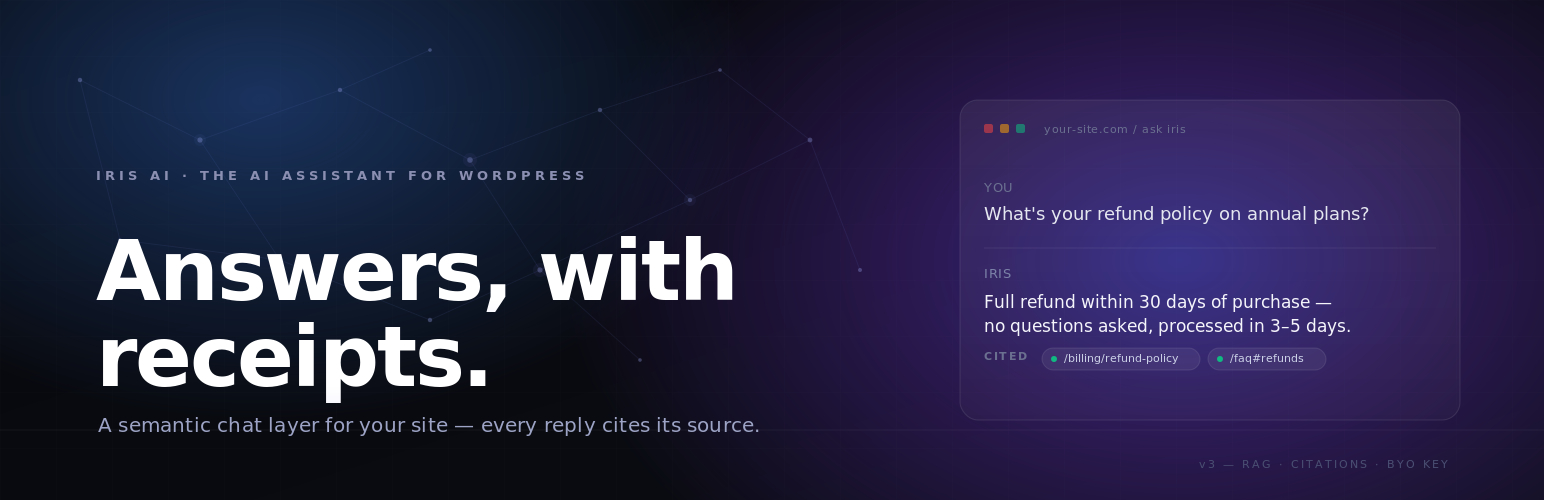
IrisAI brings powerful AI chat capabilities to your WordPress site with semantic vector search (RAG) and source citations. Choose between two flexible connection modes and deploy with either a beautiful full-page chat interface or a convenient floating widget.
Watch the full setup & demo video:
Key Features
- Dual Interface Options – Full-page chat with hero section and wave animations, or floating chat widget with customizable positioning
- Vector Search (RAG) – Semantic search of your content using embeddings with automatic source citations
- Flexible Connection Modes – Proxy Mode (IrisAI hosted service) or BYO Mode (bring your own OpenAI API key)
- Complete Customization – Custom system prompts, configurable AI models, adjustable token limits, brand colors
- Privacy & Security – API keys never exposed to frontend, all requests server-side, GDPR compliance features
- Features – Multi-site support, chat history, auto-inject widget, rate limiting protection
Perfect For
- Customer support automation
- Website FAQs and knowledge base
- E-commerce product assistance
- Educational content interaction
- Documentation search
- Internal company wikis
How It Works
- Connect – Choose Proxy or BYO mode and enter credentials
- Index – Select content types and start vector indexing
- Deploy – Add shortcode or enable auto-inject widget
- Customize – Adjust colors, prompts, and behavior to match your brand
Privacy First
IrisAI respects user privacy and data protection. Keys stored securely in WordPress database, server-side API calls only, optional privacy mode disables query logging, user consent checkbox for AI processing, and GDPR-ready features included.
Documentation
Complete setup guide and documentation available in the plugin’s Usage tab. Get step-by-step instructions, troubleshooting tips, and best practices.
Frontend Dependencies
This plugin includes the following open-source libraries:
- sine-waves.min.js – MIT License – Wave animation effects (https://github.com/isuttell/sine-waves)
- three.min.js – MIT License – 3D graphics library (https://github.com/mrdoob/three.js)
External Services
This plugin connects to external APIs to provide AI-powered chat responses and semantic (vector-based) search functionality.
The plugin may communicate with the following third-party services, depending on how it is configured by the site administrator.
IrisAI Proxy Service (api.irisai.cloud)
When using Proxy Mode, this plugin sends requests to the IrisAI proxy service to process AI chat queries and vector search requests.
What the service is used for • AI chat responses • Semantic (vector-based) search over your site content • Usage tracking, rate limiting, and billing management
What data is sent • User chat messages • Relevant indexed site content (for vector search) • Website domain (for license verification) • API authentication token
When data is sent • When a user submits a chat query • When content is indexed for vector search
Service provider IrisAI Website: https://irisai.cloud
Terms of Service https://irisai.cloud/terms
Privacy Policy https://irisai.cloud/privacy
OpenAI API (api.openai.com)
When using BYO (Bring Your Own API Key) Mode, or when the IrisAI proxy forwards requests, this plugin communicates directly or indirectly with OpenAI’s API.
What the service is used for • Generating AI-powered chat responses • Processing embeddings for semantic search
What data is sent • User chat messages • Relevant indexed site content (for vector search)
When data is sent • When a user submits a chat query • When content is indexed for semantic search
Service provider OpenAI, L.L.C. Website: https://openai.com
Terms of Service https://openai.com/terms
Privacy Policy https://openai.com/privacy
Anthropic Claude API (api.anthropic.com)
When administrators configure BYO mode with an Anthropic Claude API key, the plugin communicates with Anthropic’s API for chat completions and embeddings (when supported).
What the service is used for • Generating AI-powered chat responses via Claude • Processing semantic search/embedding data (where available)
What data is sent • User chat messages • Relevant indexed site content (for vector search)
When data is sent • When a user submits a chat query • When content is indexed for semantic search
Service provider Anthropic PBC Website: https://www.anthropic.com
Terms of Service https://www.anthropic.com/legal/terms-of-service
Privacy Policy https://www.anthropic.com/legal/privacy
Google Gemini API (generativelanguage.googleapis.com)
When administrators configure BYO mode with a Google Gemini API key (via Google AI Studio / Vertex AI), the plugin calls Google’s Generative Language API for chat completions or embeddings.
What the service is used for • Generating AI-powered chat responses via Gemini • Processing embeddings for semantic/Knowledge Index search
What data is sent • User chat messages • Relevant indexed site content (for vector search)
When data is sent • When a user submits a chat query • When content is indexed for semantic search
Service provider Google LLC Website: https://ai.google.dev
Terms of Service https://ai.google.dev/terms
Privacy Policy https://policies.google.com/privacy
3.0.4
- Added the shared model-call layer used by Theme Kit features in both Proxy and BYO modes.
- Added configurable task prompts for summaries, reading paths, author voice, contact polishing, service briefs, and team voice.
- Added REST endpoints for post summaries, semantic search, curated reading paths, and author voice.
- Added editor-only tools for article outlines, rephrasing, attachment alt text, SEO metadata, and schema suggestions.
- Added Iris block-theme endpoints for helpful feedback, saved chats, smart subscribe, quizzes, fact checks, comparisons, translation, explanations, related posts, personalized picks, and smart 404 suggestions.
- Added database setup for saved chats, helpful feedback, and smart-subscribe leads.
- Preserved the stable 3.0.3 settings experience without adding experimental admin tabs or changing the existing chat workflow.
3.0.3
*Companion support for the upcoming Iris Theme Kit — auto-detects the theme and exposes shared hooks so the full-page chat and floating widget integrate cleanly with its Elementor widgets and hero blocks.
3.0.2
- Fix: chat-history table now auto-creates after upgrading existing installs, so admin chat logs work without re-activation.
- Fix: uninstall routine removes the
irisai_chat_historytable together with other plugin data. - Tweak: Knowledge Index naming and warnings updated across the UI for a more consistent setup experience.
3.0.0
- Added support for additional AI models, including more ChatGPT options and models from Anthropic (Claude) and Google Gemini
- PDF indexing support, enabling AI-powered search over uploaded documents
- New Knowledge Index tab with an in-dashboard knowledge base view, document stats, and indexing controls
- Added chat history storage plus an admin chat-history tab with filters, pagination, and a conversation viewer
- Added admin debug mode: logged-in admins can enable a debug panel in the chat widget showing request details, response times, and error info
- Performance and speed improvements for faster AI responses
2.0.2
- Improvement: Improved REST nonce handling to avoid “Security token expired” errors on cached pages.
- Improvement: Better compatibility with caching plugins and CDN caching.
2.0.1
- Added YouTube demo video to plugin description.
2.0.0
- Introduces the new Setup Wizard.
1.0.5
- Responsive style fixes
1.0.4
- Improved compatibility with block themes by safely replacing the theme hero block with the live chat on the front-end while preserving the editor preview
- Simplified chat interface by removing unused empty-state card markup to improve performance and reduce unnecessary HTML output
1.0.0
- Initial public release
- Full-page chat interface with [irisai_chat] shortcode
- Floating widget with [irisai_widget] shortcode
- Dual connection modes (Proxy and BYO)
- Vector search with RAG capabilities
- Source citations and reference links
- Customizable wave animations
- Brand color customization
- Chat history with localStorage
- Auto-inject widget option
- Privacy mode and GDPR features
- Rate limiting protection
- Multi-language support
- Responsive mobile design
- Complete admin documentation
- Background indexing system
- Cache management
- Clean uninstall option
Usage Examples
Shortcodes
Full-Page Chat:
[irisai_chat]
Creates a beautiful full-page AI chat interface with hero section, animated wave background, large search input, suggestion chips, real-time AI responses, and source citations.
Floating Widget:
[irisai_widget]
[irisai_widget position="bottom-right"]
[irisai_widget position="bottom-left"]
[irisai_widget position="top-right"]
[irisai_widget position="top-left"]
Creates a floating chat button that opens a popup window with compact chat interface, persistent chat history, and mobile-friendly fullscreen.
Knowledge Index Setup
- Go to Settings > IrisAI > Knowledge Index
- Select content types to index (Posts, Pages, Custom Post Types)
- Configure chunk size (200-2000 characters, default: 900)
- Configure chunk overlap (0-500 characters, default: 150)
- Click “Start Indexing” to begin background processing
- Enable “Auto Re-index” to automatically update on content changes
System Prompt Customization
Customize the AI’s behavior with system prompts using available variables:
{site}– Your website URL{lang}– User language preference
Example customizations by business type:
- E-commerce: “Always mention our 30-day return policy when asked about returns”
- Service Business: “For pricing questions, invite users to schedule a consultation”
- Restaurant: “For reservations, direct users to call (555) 123-4567”
Best Practices
For best results:
- Use full-width page template for [irisai_chat]
- Index your most important content first
- Add 5-8 relevant prompt suggestions
- Keep system prompt clear and concise
- Test on mobile devices before launch
- Enable privacy mode if handling sensitive data
Recommended setup:
- Use [irisai_chat] on dedicated page: “AI Assistant” or “Ask AI”
- Enable auto-inject widget for site-wide access
- This gives users both a destination and quick access
Token recommendations:
- 800-1000 tokens: Normal chat (balanced responses)
- 1500-2000 tokens: Developer mode or detailed explanations
- 3000-6000 tokens: Long-form content or article generation
Troubleshooting
Chat not working?
- Verify API credentials in General tab
- Check domain is registered in proxy dashboard (Proxy Mode)
- Ensure sufficient credits (Proxy Mode)
- Confirm content is indexed (Knowledge Index tab)
- Check browser console for JavaScript errors
- Enable WP_DEBUG in wp-config.php for detailed logs
Vector search not finding content?
- Confirm indexing completed successfully
- Check selected content types are correct
- Try re-indexing content
- Clear Knowledge Index cache (General tab)
- Verify chunk size isn’t too large or small
Widget not appearing?
- Check auto-inject is enabled (Widget tab)
- Verify no JavaScript conflicts
- Clear browser and WordPress cache
- Check theme compatibility
- Try manual shortcode placement
Privacy Policy
IrisAI is designed with privacy in mind:
- API Keys: Stored securely in WordPress database, never exposed to frontend
- Chat Queries: Optional logging (disabled in privacy mode)
- Chat History: Stored in user’s browser localStorage (client-side only)
- Vector Data: Your content chunks stored in WordPress database for search
- Usage Stats: Available only in Proxy Mode dashboard (irisai.cloud)
What data is sent to third parties:
- OpenAI: User queries and relevant content chunks (when BYO or Proxy mode is used)
- IrisAI Proxy: Only in Proxy Mode – queries, API authentication, usage tracking
- No other third parties receive data
User rights:
- Users can clear their chat history via “New Chat” button
- Site owners can disable query logging (Privacy Mode)
- Complete data removal via clean uninstall option
Recommendations:
If you use IrisAI on your site, we recommend adding AI data processing to your privacy policy, implementing user consent (checkbox available in Advanced settings), enabling privacy mode for GDPR compliance if needed, and informing users their questions are processed by AI.
Uninstall
When you delete IrisAI via the Plugins screen, you can optionally remove all plugin data including settings, Knowledge Index data, cached search results, and database tables.
To perform clean uninstall:
- Go to Settings > IrisAI > Advanced tab
- Enable “Remove data on uninstall” option
- Save changes
- Deactivate the plugin
- Delete the plugin from Plugins screen
- All data will be removed automatically
Credits
This plugin incorporates the following third-party library: *Smalot PDF Parser**: Used for parsing and extracting text from PDF files. This library is developed by Smalot and distributed under the MIT License. For more details, visit the Smalot PDF Parser GitHub repository.
- sine-waves by Isaac Suttell
- three.js by three.js authors
- Plugin by IrisAI Team
- Website: https://irisai.cloud