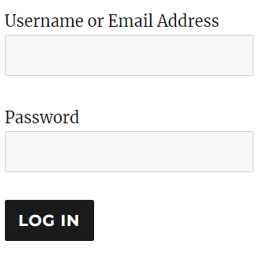

WP Login Form allows you to create a simple login form for use anywhere on the front end of your WordPress site. You can add it to a post, page or your sidebar with a shortcode.
WP Login Form Add-ons
How to Create a Custom Login Page for WordPress
In order to create a login form or custom login page for WordPress with the default options, all you need to do is use this shortcode:
[wp_login_form]
However, there are other parameters that you can pass in the shortcode to customize it.
redirect
An absolute URL to which the user will be redirected after a successful login. For example,
[wp_login_form redirect="https://example.com/mypage/"]
The default is to redirect back to the URL where the form was submitted.
form_id
Your own custom ID for the login form. For example,
[wp_login_form form_id="myloginform"]
The default is “loginform”.
label_username
Your custom label for the username/email address field. For example,
[wp_login_form label_username="Login ID or Email"]
The default is “Username or Email Address”.
label_password
Your custom label for the password field. For example,
[wp_login_form label_password="Login Password"]
De standaard is “Wachtwoord””.
label_remember
Your custom label for the remember field. For example,
[wp_login_form label_remember="Remember"]
De standaard is “Onthoud mij”.
label_log_in
Your custom label for the form submit button. For example,
[wp_login_form label_log_in="Submit"]
De standaard is “Log in”.
id_username
Je eigen aangepaste ID voor het gebruikersnaamveld. Bijvoorbeeld,
[wp_login_form id_username="wp_user_login"]
De standaard is “user_login”.
id_password
Your own custom ID for the password field. For example,
[wp_login_form id_password="wp_user_pass"]
De standaard is “user_pass”.
id_remember
Your own custom ID for the remember field. For example,
[wp_login_form id_remember="login_rememberme"]
De standaard is “onthoud mij”.
id_submit
Your own custom ID for the form submit button. For example,
[wp_login_form id_submit="login_form_submit"]
De standaard is “wp-submit”.
remember
Specify whether to display the “Remember Me” checkbox in the WordPress login form. For example,
[wp_login_form remember="0"]
De standaard is “1” (waar).
value_username
Your custom placeholder attribute for the username input field. For example,
[wp_login_form value_username="Your Username"]
De standaard is NULL.
value_remember
Specify whether the “Remember Me” checkbox in the form should be checked by default. For example,
[wp_login_form value_remember="1"]
De standaard is “0” (niet waar).
lost_password
Specify whether to display a lost password link in the form. For example,
[wp_login_form lost_password="0"]
De standaard is “1” (waar).
label_lost_password
Your custom label for the lost password link. For example,
[wp_login_form label_lost_password="Reset Password"]
The default is “Lost your password?”.
How to Enable Google reCAPTCHA
WP Login Form supports Google reCAPTCHA v3 to protect your login form against spam and other types of automated abuse. To enable this feature, go to “Settings > WP Login Form” and configure these options.
- Enable Google reCAPTCHA v3
- Site Key
For detailed documentation please visit the WordPress Login Form plugin page