Jump Links Block (SEO 44)
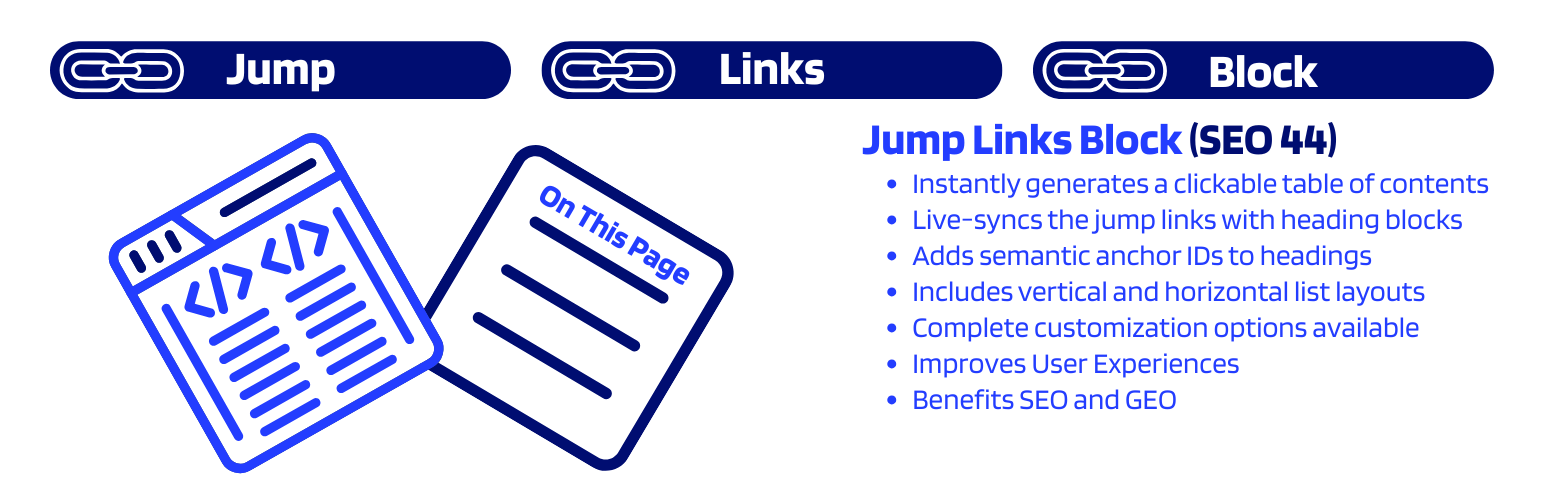
A WordPress block that automatically generates a customizable Jump To “On this Page“ table of contents to improve user navigation and engagement on your posts and pages.
Jump Links Block (SEO 44) intelligently scans your content for headings and creates a dynamic, interactive list of links. With a complete collection of controls in the editor sidebar, you have command over the block’s functionality and appearance, from reordering links to fine-tuning the design for your theme.
The SEO & User Engagement Benefits
Boost Your SEO & User Engagement Adding a well-structured table of contents is one of the most effective ways to improve both your website’s user experience and its visibility in search engine rankings. The Jump Links Block is more than just a navigation tool; it’s a powerful feature for enhancing your SEO.
Stand Out in Search Results Google and other search engines can detect the anchor links created by this block and may feature them directly in the search results. This adds valuable “Jump to” links below your page description (also known as fragment links or in-page links), allowing users to go directly to the section that answers their question.
Improve Click-Through Rate (CTR) By occupying more space in the search results and presenting a clear outline of your content, you make your listing more appealing and informative. This encourages more users to click on your link over your competitors, directly boosting your CTR—a key metric that can lead to better search engine rankings.
Enhance User Experience For long articles, a table of contents is essential. It allows readers to easily navigate to the sections they care about most, and see exactly where they are in the article at a glance, which reduces bounce rates and increases the time they spend on your page. Search engines place value on these positive user engagement signals.
Provide Clear Context for Search Engines A list of jump links acts as a clear, semantic outline of your page’s structure. This helps search engines better understand the topics and sub-topics you cover, which can improve your chances of ranking for a broader range of related search queries.
Key Features
Automatic & Intelligent
-
Auto-Generates Links: Scans your document in real-time and creates a list of links from your H2, H3, and H4 heading blocks.
-
Smart Anchor ID Handling: Automatically adds unique, semantic ID attributes to heading blocks that don’t have one.
-
Respects Your Content: Never overwrites a custom ID you’ve already added to a heading, giving you complete control.
-
Live Syncing: The list automatically updates in real-time as you add, remove, or edit headings in the editor.
Full Customization
-
Viewing & Editing Modes: Switch between a clean preview (Viewing Mode) and a detailed interface (Editing Mode) directly in the sidebar’s “Presentation” panel.
-
Custom Link Text: Change the text of any link. For example, turn a long heading like “Frequently Asked Questions about Our Product” into a short and simple “FAQ.”
-
Custom Ordering: Easily reorder links with simple up and down arrow buttons to create the perfect flow for your readers.
-
Toggle Visibility: You can exclude any heading from the list with a simple “Include/Exclude” toggle. This allows you to leave a section out of your Jump Links List, if desired.
-
Customizable Heading: Add an optional title (like “On This Page”) above your list of links.
Advanced Styling
-
Organized Sidebar: All styling controls are neatly organized in a dedicated “Appearance” panel.
-
Layout Options: Display your links in a standard vertical list or a horizontal layout. For horizontal lists, choose between the classic Button style or the minimalist Plain Text style.
-
Visual Separators: When using the Plain Text layout, choose from elegant separators like Spaces, Middle Dots, Pipes, or Slashes to organize your links.
-
List Styles: Choose between a bulleted list (
<ul>), a numbered list (<ol>), or no list styling at all. -
Typography: Control the font size with a simple picker, including a reset button.
-
Block Background: Set a background color for the entire block container to make your table of contents pop or match your theme’s card style. This setting extends upon the block margin, padding, and border options within the block styling tab.
-
Full Color Control: Use integrated color pickers to customize: Link Color, Other Text Color (for bullets, numbers, and the main heading).
-
Conditional Horizontal Link Styles: When in the horizontal layout, you can fine-tune the design with controls for Link Background Color, Link Background Color on hover, Link Border Color, and border radius.
-
Visual Hierarchy: Optional “Smart Indentation” creates a nested outline look, making it easier for readers to scan your document structure in a larger Table of Contents (e.g., indenting H3s under H2s).
Front-End Experience
-
Smooth Scrolling: Clicking a link smoothly scrolls the user to the relevant section of the page, providing a modern and pleasant user experience.
-
Collapsible List: Optional feature to collapse long lists with an elegant “Show More” / “Show Less” SVG icon button to expand and contract the list horizontally or vertically.
-
Sticky Navigation: Optionally, keep the table of contents pinned to the viewport as users scroll, ensuring navigation is always accessible for long articles.
-
Scroll-Up-To-Reveal: Enable optional “Smart Sticky” behavior to save screen space. The sticky navigation hides automatically when users scroll down and instantly reappears when they scroll up—perfect for mobile reading.
-
Smart Sticky Controls: Includes a Top Offset setting to prevent the block from hiding behind your site’s sticky header, a Jump Offset setting to ensure that the sticky header does not cover the heading text, and a Disable on Mobile strategy to prevent it from blocking content on small screens.
-
Auto-Hide Title: When using Sticky Positioning, the block title (e.g., “On This Page”) automatically fades out and collapses once the block sticks to the top of the screen. This maximizes reading space while keeping the navigation links accessible.
-
Active Link Indicator (ScrollSpy): As your readers scroll through the content, the table of contents automatically highlights the link for the section they are currently reading, giving them instant context on their progress.
How to Use
- Create or edit a post or page.
- Click the + icon to add a new block and search for Jump Links Block.
- Add the block to your page. It will automatically find your headings.
- Use the settings in the editor sidebar to customize the block. A. In the Presentation panel, switch to Editing Mode to see all the controls for customizing individual links (reordering, renaming, and hiding). B. In the “Appearance” panel, control the layout, styling, and colors. C. In the “Heading Settings” panel, toggle the optional title and select which heading levels to include.
You Might Also Like
If you like this plugin, you might also enjoy these WordPress tools:
- Search Appearance Toolkit (SEO 44) – A lightweight, feature-packed SEO plugin for WordPress that offers a comprehensive suite of site optimization tools, all easy to control.
- Microdata to JSON-LD Converter – A handy tool to convert your existing Schema.org Microdata into the preferred JSON-LD format, clean up your HTML, and maintain structured data.
- Under The Weather – A lightweight and customizable weather widget, powered by the OpenWeather API, that caches and presents weather data with multiple style options.