
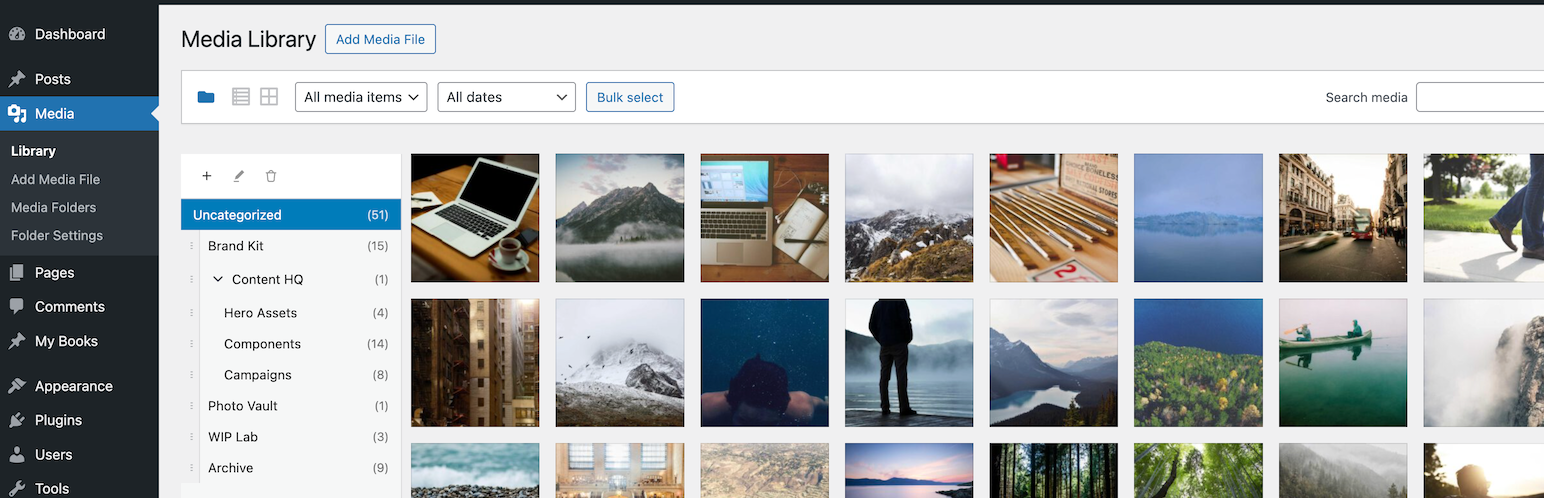
Virtual Media Folders brings virtual folder organization to your WordPress Media Library. Organize your media files into hierarchical folders without moving files on disk—folders are virtual, so your URLs never change.
Features
- Virtual Folders – Create hierarchical folder structures to organize media
- Drag & Drop – Easily move media between folders with drag and drop
- Sticky Sidebar – Folder navigation stays visible while scrolling through media
- Gutenberg Integration – Filter media by folder directly in the block editor
- Bulk Actions – Move multiple media items at once
- Keyboard Accessible – Full keyboard navigation support
- Internationalized – Ready for translation (Norwegian Bokmål included)
Free add-ons
Add-On Manager lets you easily install and manage add-ons that extend Virtual Media Folders with powerful new features:
- AI Ability – Registers MCP tools for AI agents via the WordPress Abilities API.
- AI Organizer – Uses vision-capable AI models to analyze actual image content and automatically organize your media library into virtual folders. This is add-on functionality requiring an API key from a supported AI service provider, or a local LLM.
- Editorial Workflow – Role-based folder access, move restrictions, and Inbox workflow.
- Folder Exporter – Export folders (or subtrees) as ZIP archives with optional CSV manifests.
- Media Cleanup – Tools to identify and clean up unused or duplicate media files.
- Migrate – Migrate folder structures from other media folder plugins to Virtual Media Folders.
- Rules Engine – Rule-based automatic folder assignment for media uploads, based on metadata, file type, EXIF or IPTC data.
How It Works
Virtual Media Folders uses a custom taxonomy to assign media to folders. This means:
- Your media files stay exactly where they are on the server
- URLs never change when you reorganize
- Folders can be nested to create hierarchies
Usage
Organizing Media
- Go to Media > Library
- Click the folder icon to show the sidebar
- Use + to create folders
- Drag media onto folders to organize / Bulk select media and use the «Move to Folder» action
- Click a folder to filter the view
Settings
Go to Media > Folder Settings to configure:
- Show «All Media» – Display «All Media» option in sidebar
- Show «Uncategorized» – Display folder for unassigned media
- Jump to folder after move – Navigate to target folder after moving
- Default folder for uploads – Auto-assign new uploads to a folder
Block Editor
When inserting media from a block (Image, Gallery, etc.):
- Open the Media Library modal
- Use the folder sidebar to filter
- Select your media as usual
Documentation
- Accessibility – Keyboard navigation and screen reader support
- Development – Setup, API reference, hooks, and contributing
- MCP Integration – MCP client configuration, upload flow, and AI agent usage using the AI Ability add-on
- Add-on Development – Guide to building add-on plugins
Privacy Policy
Virtual Media Folders does not:
- Track users
- Send data to external servers
- Use cookies
- Collect any personal information
All data is stored locally in your WordPress database.