
HandL AI Connector Access Control
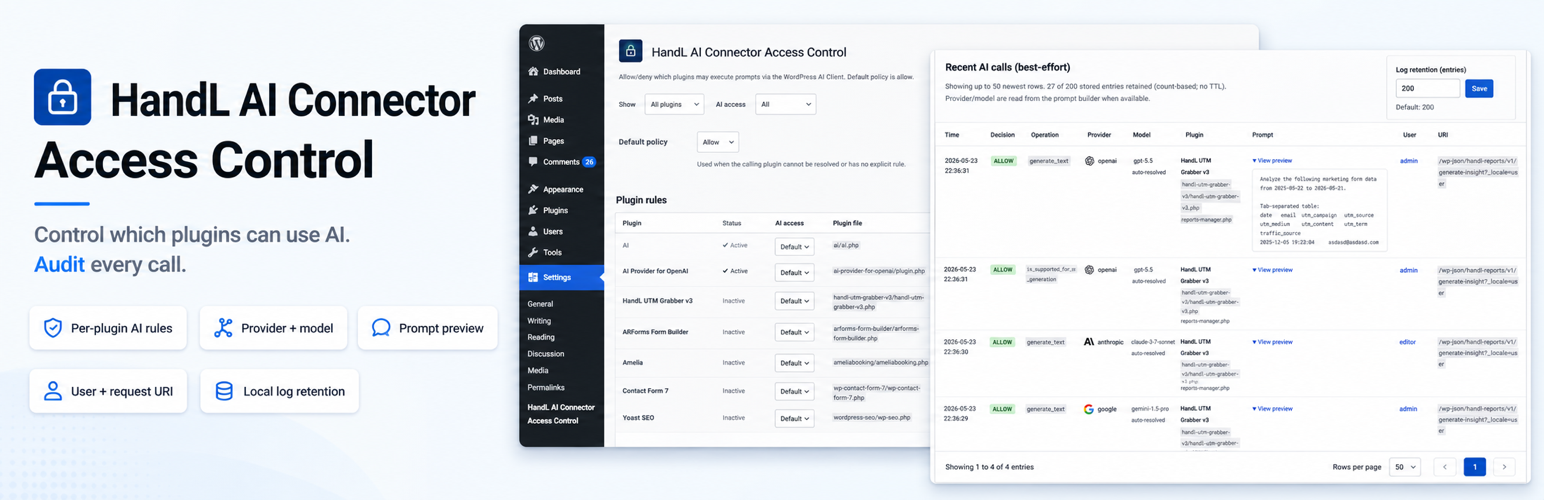
Know when your WordPress plugins use AI.
See activity. Control access. Track estimated spend.
Avoid surprise AI bills
- See estimated spend by plugin.
- Add your own provider rates.
- Estimates are not bills.
- This plugin does not sell AI usage or add AI charges.
- Your AI provider controls actual billing.
What it does
- Shows which plugin made each AI Client request.
- Shows whether each request was allowed or blocked.
- Shows the AI task, provider, model, tokens, and estimated spend.
- Lets you allow or deny each plugin.
- Lets you control text, image, speech, and video separately.
- Includes Learn mode so you can watch first.
- Includes Emergency stop for urgent shutdowns.
Who it is for
- WordPress site owners.
- WordPress administrators.
- Multisite teams that manage rules one site at a time.
No developer experience is required.
How it works
- Install the plugin.
- Open Settings → HandL AI Connector Access Control.
- Turn on Learn mode.
- Review Activity.
- Add rules after you know which plugins need AI.
Everyday controls
- Plugin rules: Allow, deny, or use the site default.
- AI type rules: Control text, image, speech, and video separately.
- Learn mode: Record activity without enforcing deny rules.
- Emergency stop: Block AI Client calls across the site.
- Blocked AI tools: Stop prompts that offer blocked tools.
- Role gate: Choose which WordPress roles may start AI operations.
More controls
- Denial alerts: Get an optional email when a request is blocked.
- Weekly report: Review activity, denials, and estimated spend by email.
- Estimated spend: Use token counts and your provider rates.
- Plugin AI profile: Open a plugin from Activity or Dashboard estimated spend to see its usage, incidents, estimated spend alerts, and current rules in one read-only view. Rule changes and CSV exports stay on their existing screens.
- Rules transfer: Export or import rules as JSON.
- Activity limits: Control how many entries are saved and for how long.
- Multisite overview: View status and activity for each site.
- WP-CLI: List and update AI type rules from the command line.
Important limits
- AI Client calls are allowed by default until you change a rule.
- This plugin governs calls made through the WordPress AI Client.
- Version 1.2.0 can observe some direct AI connections. It does not block them.
- The known-provider list is not complete.
- Caller identification is best effort.
- Experimental model force is not a spending guarantee.
- Activity may be empty when WordPress disables AI site-wide.
Privacy
- Activity stays on your WordPress site by default.
- Logging, denial alerts, and webhooks are optional.
- The weekly report is selected by default.
- It sends only while logging or Learn mode is on.
See Privacy / Data below for every stored or transmitted field.
Privacy / Data
By default this plugin does not send data to any external service. Features that store or transmit call metadata are opt-in (logging, denial alerts / webhook, shadow-AI observe alerts) or default-on only while logging/learn mode is on (weekly report) — each has an explicit Settings toggle.
If you enable recent-call logging in Settings → HandL AI Connector Access Control, it stores a local log in the WordPress options table containing:
- Timestamp
- Allow/deny decision (AI Client rows) or observe (direct-HTTP AI observations)
- AI Client operation (e.g.
generate_text,is_supported_for_text_generation) — ordirect_httpfor shadow observations - Capability family (text / image / speech / tts / video / unknown) for AI Client rows
- Provider and model when set on the prompt builder (or model preferences)
- In learn mode: whether a configured model pin matched, and the provider/model you pinned
- Truncated prompt preview and selected generation config (best-effort; AI Client rows only)
- Input and output token counts when the AI Client completes a generation (best-effort)
- Best-effort calling plugin (plugin basename) and source file
- Current user id and display name
- Initiating WordPress role slug(s) when a user context exists (role gate / audit; no usernames beyond display name already listed)
- Full request URI (including query string, kept only on this site) for AI Client admin-request context
- For direct-HTTP AI observations only: request host and path (query string stripped). No request body, no Authorization headers, no API keys. Channel label
direct_httpand matched provider id when known.
Logs are kept as a single shared entry-based ring buffer (default 200 entries, configurable 20–1000) for both AI Client rows and direct-HTTP AI observations. An optional maximum log age (days) setting also drops rows older than the threshold on the next read or append; when both the count cap and the time-based TTL apply, the stricter limit wins. Leave maximum age empty for entry-count-only retention. Repeated direct-HTTP calls from the same attributed plugin + host (or the same unattributed file + host) that stay active within ~5 minutes of idle time are collapsed into one row whose count is the number of HTTP calls (same unit as AI Client rows). Active clusters move to the newest slot so a chatty bypass does not erase the rest of the log, and the log does not drop the chatty cluster ahead of idle rows.
If you set an estimated spend alert threshold (Activity → Estimated spend alerts), the plugin may send a message via WordPress wp_mail when the retained log’s estimated total first crosses that amount (site-wide or per-plugin). The email includes the threshold, current estimated total, dated log window, and (for per-plugin alerts) the plugin name. It states that the figure is estimated (token × rate placeholder), not billing. No prompt text or user identity is included. Empty thresholds never send mail. Delivery failures are contained and never change allow/deny.
If you enable denial email alerts, the plugin sends a message via WordPress wp_mail when enforcement blocks a prompt (immediate rate-limited mail, or an hourly digest). The recipient is the address you configure, or the site admin_email if left empty — that may be any address you enter, and mail is delivered through whatever transport your site uses (core PHP mail or an SMTP / transactional-mail plugin). Alert messages include:
- Timestamp
- Calling plugin (best-effort basename)
- AI Client operation and capability family
- Denial reason and any matched blocked tools
- Provider and model when known (may be labeled inferred)
- Request path only (query string is stripped before mail; full URI stays in the local log if logging is enabled)
Alert mail does not include prompt preview or user identity. Digest rows waiting to send are stored in a local options queue (path-only URI) and are removed when alerts are turned off or the plugin is uninstalled.
If you enable shadow-AI email alerts (Activity tab; off by default), the plugin sends a message via WordPress wp_mail the first time a given attributed plugin+host (or unattributed file+host) pair appears as a direct_http observe row in the retained log window — immediate rate-limited mail, or the same hourly digest queue, using the same recipient and mode as denial alerts. Messages are explicitly labeled observe / not blocked and include:
- Timestamp
- Best-effort calling plugin, file, or method
- Request host
- Path only (query string stripped — same redaction as denial alerts)
Shadow-AI alerts do not block HTTP and are not posted to the webhook. They require logging or learn mode, and are suppressed when AI is disabled site-wide via wp_supports_ai. Chatty-cluster collapse (~5 minutes idle) and the retained-window pair check prevent duplicate alerts for the same pair.
If you also set a Webhook URL (Activity → denial alert settings), the plugin POSTs a generic JSON body with the same fields as the denial email alert to that http(s) URL whenever a denial alert would fire (same alert_on_deny gate, rate limit, and immediate/digest mode — not a separate toggle). Delivery uses WordPress wp_remote_post (timeouts/non-2xx are contained like wp_mail failures and never change allow/deny). The URL is an intentional admin-supplied outbound integration (same trust model as the alert recipient). Empty URL means no webhook POST is attempted. A Send test webhook control posts a sample payload clearly labeled as a test (bypasses rate limiting). Weekly report email and shadow-AI observe alerts are not sent to the webhook in this release.
If you enable the weekly report email (Activity tab), the plugin sends one message per week via WordPress wp_mail with Dashboard-style aggregates from the retained local log. This is the first surface where retained log data can leave the WordPress site (through your site’s mail transport into an inbox). The weekly report includes only:
- Dated window from the oldest and newest retained log timestamps (self-dating so a late WP-cron send stays honest)
- Coverage call counts (through the AI Client vs outside — not governed by these rules)
- Deny count in the retained window; default policy and learn-mode / kill-switch state labels
- Estimated spend total and top plugins by estimated $ (token × rate placeholders — not billing)
- Pin-hold counts when experimental force rules are configured
- Plugin display names (or basenames) for top estimated-spend rows
Weekly report mail does not include prompt preview, user identity, request paths, hosts, denial reason detail rows, or any per-call URI. Recipient is the same address as denial alerts (or site admin_email if empty). Every email includes a link to turn the report off. The weekly cron is cleared when the report is disabled, logging is off, or the plugin is uninstalled.