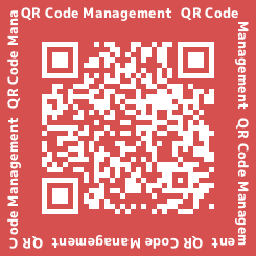
QR Code Management issues a QR code for the public pages of posts, fixed pages, and custom post types. QR codes can be downloaded in PNG, SVG, EPS, or JPEG format, embedded in content with a shortcode, and tracked with an access log.
Features
- QR code display — Shows a QR code with a download button on the edit screen and in the post / page list of the post types you choose.
- Output formats — Download QR codes as PNG, SVG, EPS, or JPEG.
- Redirect (shortened URL) — Embeds a shortened URL (
https://your-site/?qrc=CODE) instead of the page URL. Each scan is recorded in an access log and redirected to the current permalink, so printed QR codes keep working even when the page URL changes. - QR code data — Embeds the permalink by default. Per post, it can be changed to a URL, contact information (MeCard / vCard), event information, or free text.
- Appearance settings — Margin, error correction level, label, size, colors, logo image, and background image can be set globally or per post.
- Original QR codes — Create QR codes that are not tied to a post, with any data.
- User profile QR codes — Issue QR codes for users. They redirect to a URL configured in the profile, or to the user’s author archive page.
- Role settings — Choose which post types and user roles can use the QR code features.
- Shortcodes —
[qrcm]embeds a QR code in content (attributes:post_id/user_id; without attributes it shows the QR code of the current post or author).[qrcm_scanner]places a camera-based QR code reader that redirects to the scanned URL.
Usage
- After activation, open “QR code management” -> “Setting” in the admin sidebar.
- Choose the target post types, user roles, data formats, and output formats.
- QR code meta boxes (data, settings, shortcode) appear on the edit screens of the selected post types, and a QR code column appears in the list screens.
See the plugin site for detailed documentation (Japanese / English).