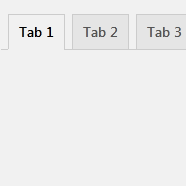
Custom Product tabs for WooCommerce

Need a customized tab for your WooCommerce products? The Custom Product Tabs for WooCommerce plugin lets you effortlessly add an unlimited number of tabs to your product pages.
You don’t need to add tabs to every product manually. Instead, you can use global tabs and assign them to products based on Category, Tags, Brands, or individual products. Additionally, there’s also an option to create product-specific tabs if needed.
Enhance your WooCommerce product pages today with Custom Product Tabs for WooCommerce!
Features
✅ Unlimited Custom Tabs – Add as many custom tabs as needed for your WooCommerce products. ✅ Global Tabs – Create tabs that can be assigned to multiple products based on categories, tags, and WooCommerce brands. ✅ Category specific Tabs. ✅ Option to disable WooCommerce default product tabs such as the Description, Additional Information, and Reviews tabs. ✅ Product specific Tabs. ✅ Supports the default WordPress Exporter and the WordPress Importer plugin to migrate the tabs. ✅ Brand-Specific Tabs – Fully supports WooCommerce’s default brand functionality and third-party brand plugins like Perfect Brands for WooCommerce. ✅ YouTube Embed Support – Easily embed YouTube videos directly within product tabs. ✅ Sortable Tabs – Organize tabs with a priority input field for better content arrangement. ✅ Multi-Language Support – Compatible with WPML and Polylang for multilingual stores. ✅ Rich Content Support – Add extra product images, detailed descriptions, videos, FAQs, and more. ✅ Shortcode Compatibility – Use WordPress shortcodes to insert dynamic content into tabs. ✅ Tab slug – SEO friendly tab slug. Create specific URL for each tab. Easy to share tab content. ✅ Developer-Friendly Hooks – Includes multiple hooks for customization and integration with third-party plugins.
💬 Help Us Translate!
Want to see this plugin in your language? Contribute a translation and become a proud WordPress translation contributor. Your support makes a difference!
How to Use
-
Install & Activate the Plugin
- Go to WordPress Admin > Plugins > Add New
- Search for Custom Product Tabs for WooCommerce (or upload the plugin ZIP)
- Click Install Now, then Activate
-
Create a New Product Tab
- Navigate to Products > Tabs
- Click Add New Tab
- Enter a Tab Title and add content using the editor
-
Assign Tabs to Products
- You can assign tabs to:
- Specific Products
- Categories
- Tags
- Brands (Compatible with WooCommerce brands and third-party brand plugins)
- You can assign tabs to:
- Select the appropriate Products, Categories, Tags, or Brands in the assignment section
-
Product-Specific Tabs
- When editing a product, go to the Product Data section
- Navigate to the Custom Tabs tab
- Click Add New Tab, enter the tab title and content
- These tabs will only appear on the selected product
-
Tab Settings
- Go to Settings > Product Tab Settings
- Customize tab behavior, visibility, and default settings
- Configure the default order for global tabs
Translate tabs using Polylang