


Looking for more traffic? Social media is your best friend. Every Facebook like and retweet helps you grow your audience and attract more customers. To ace your online strategy, optimize your website for social media. From widgets to share buttons, here are five ways to integrate social media into your WordPress.com site.
Social Media Icons
Your website is an important sales tool, but it shouldn’t be the only way you reach and engage customers. If you’re on Facebook, Twitter, Instagram, and Pinterest, add Social Media icons to your sidebar or footer where visitors are sure to see them.
There are three ways to add social media icons to your WordPress.com website or blog. First, some themes offer a special custom menu for social media icons. The menu generates icons designed for your theme and are easy to update if your social media accounts change in the future.
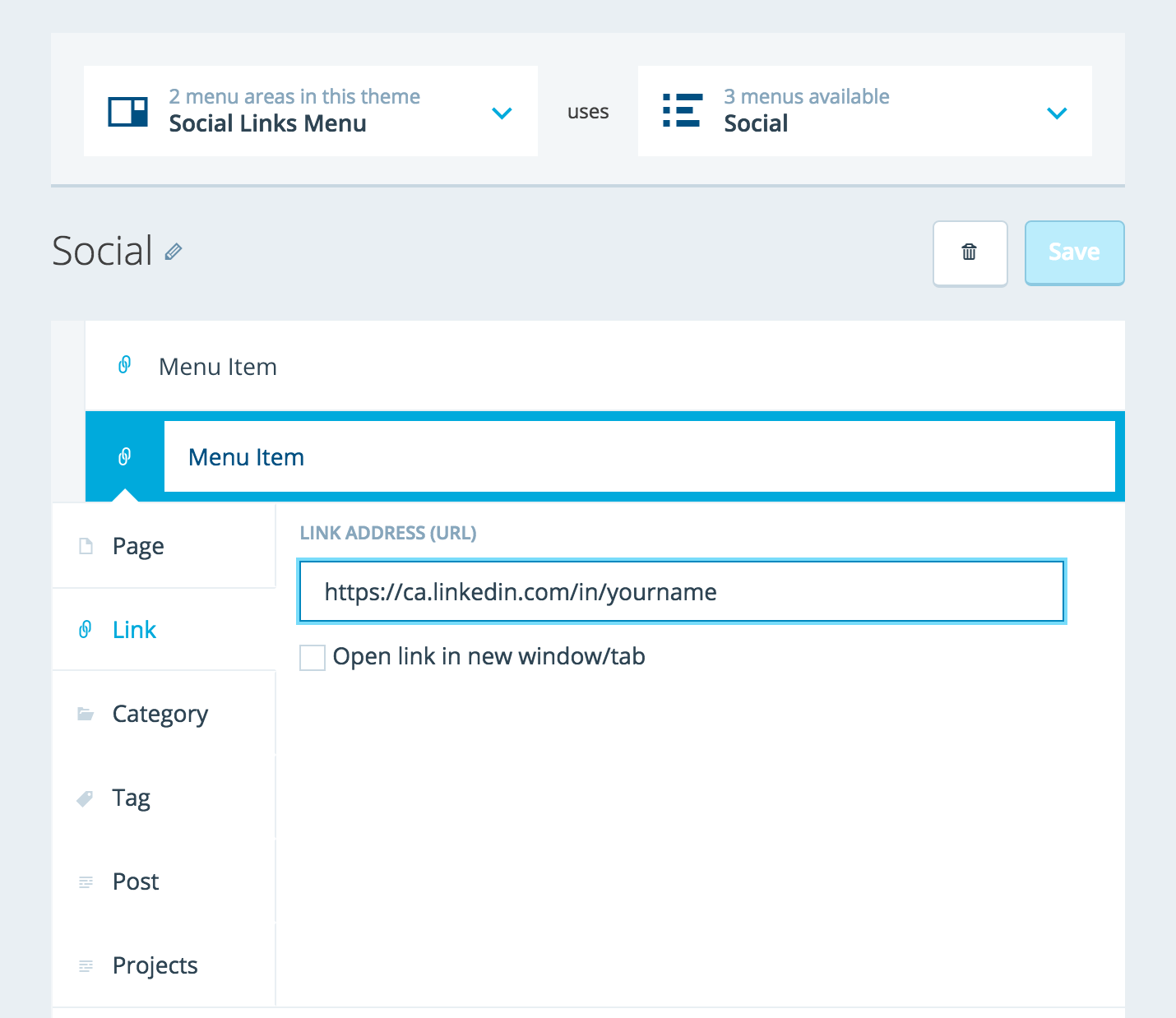
Another way is to use Widgets — tools or content that you can add, arrange, and remove from the sidebar(s) of your blog. Select the social media icons widget from the Widgets section in your Customizer to connect the most popular social media networks to your website or blog.
Third, if you have your own social media buttons, you can upload your icons to your media library and use the Text widget with a little HTML to control how they display.
For example, The Foodimentary, a blog dedicated to food-related holidays and holiday-related food has added custom social media icons in the widget area of their landing page.

Sharing Buttons
Make it easy to like and share your content by activating sharing buttons at the bottom of your posts and pages.
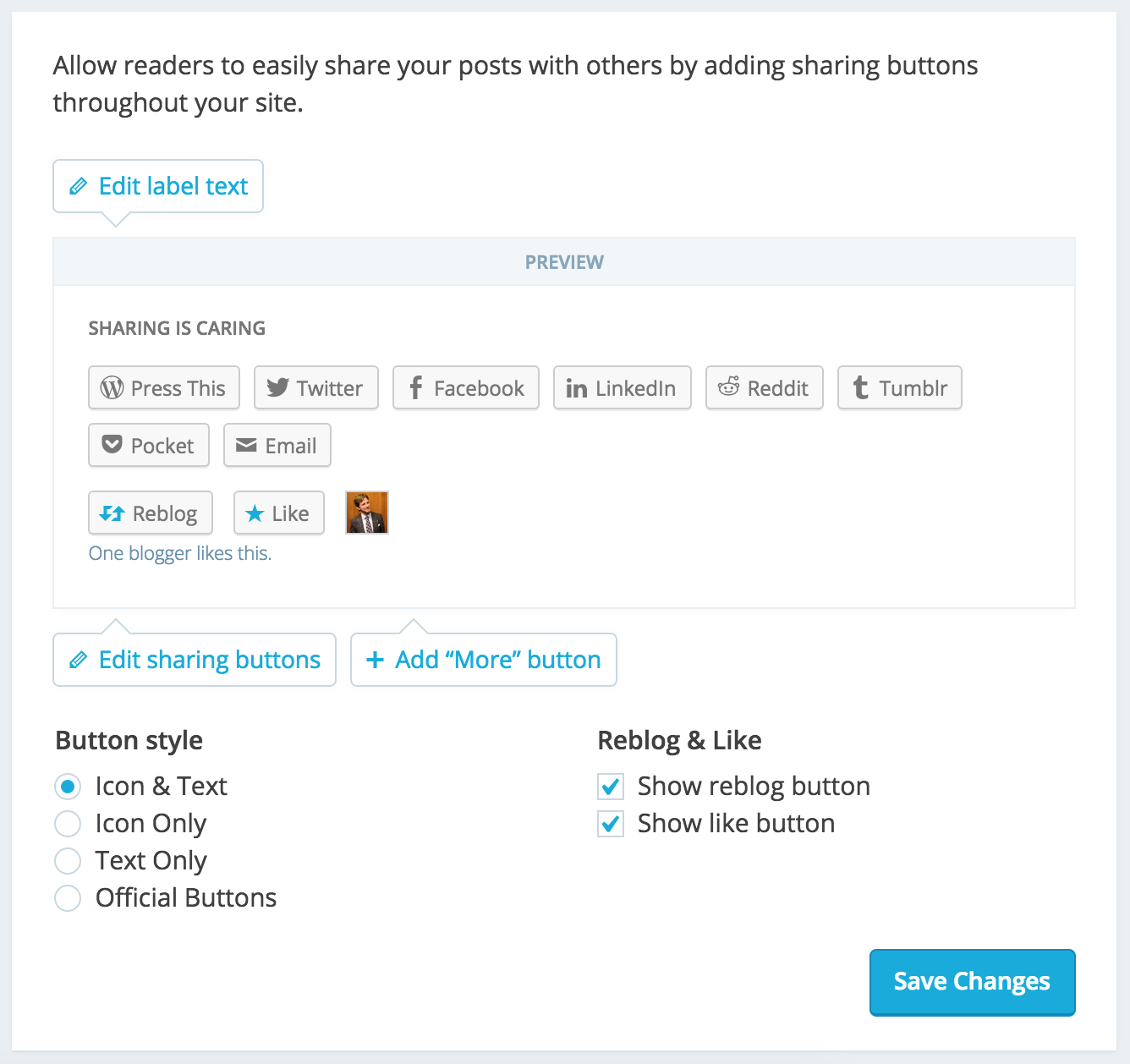
To customize your blog’s sharing options, go to My Sites → Sharing in the sidebar. You can control the order and look of your social media buttons. You can disable the sharing option and/or like button on specific posts or pages by using the checkbox(s) in the Advanced Settings for a post.
Widgets
Use Widgets to showcase your real-time Twitter timeline, latest Instagram pictures, and other social media activity. Go to Widgets in your Customizer to view, test, and add widgets to your website. Depending on your theme, you may be able to choose where your widget appears on your site. Try different combinations to see what works best.

Recording artist and performer Tae Phoenix used the widget area on her website to embed a Facebook badge, her Twitter Timeline and Instagram photos. Her homepage now features all her social media activity in one central place.

Publicize
How many marketers do you need to change a lightbulb? None, they automate it!
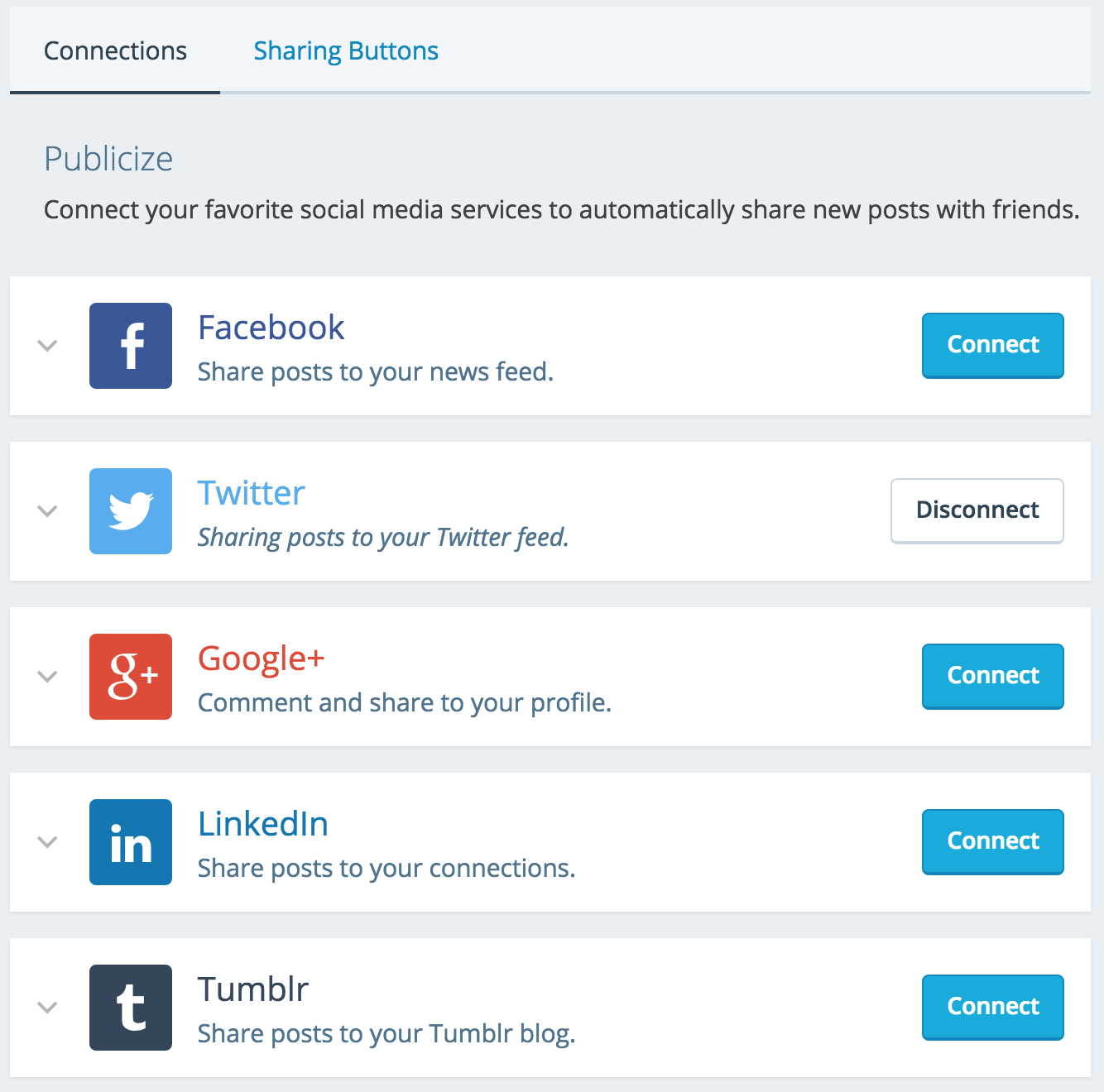
With Publicize, you can broadcast and share your content across your favorite social media accounts as soon as you hit publish. To connect your social networks like Facebook, Twitter, Google+, LinkedIn, Tumblr, Path, and Eventbrite, go to My Sites → Sharing. Try it out now!
Embedding Content
Blend your social media activity and website content by embedding tweets, Facebook posts, Instagram photos, and more right into your blog posts and pages.
To embed content, copy and paste the link into the text or visual editor.

Don’t let your website live in silence and solitude! Integrate your social media activity and watch it come alive. We want to hear from you. Share your stories of how you’re sharing your WordPress content below.
Planning on turning your website into a lean mean marketing machine?
Consider upgrading to a WordPress.com Premium or Business plan to unlock features like advanced customization, more space for your photos and videos, and stellar customer support.
Our Premium and Business plans also include a custom domain and access to premium themes. Try it out for 30 days. (Note that for the domain registration-related portion of the upgrade, the refund window is 48 hours.)

 WordPress.com News
This is something helpful. Thank you for sharing #WordPress. You did an amazing Job! Cheers!
Very helpful tips. Thanks for sharing.
Thank you. Really great advice
Why is there no google+ button in the default widget?
Thanks for commenting! We’re working on adding it. Stay tuned.
Thanks for the tips….very helpful for the new blogers like me 🙂
Thank you for this!
This is a great help, thank you
I really needed these tips thanks!
Thank you for the tips. Now I have something to start with… 😉
Some great advice, thank you 🙂
I also like to add the Blog subscription shortcode to the end of each post, but I know some people find shortcode just too frightening. A nice touch would be to have a menu option that allows you to select shortcode from a button in the Visual Editor (rather like you can if you use WordPress.org and download certain plugins). That would save having to go into the Support area if you’ve forgotten the shortcode format you need.
Thank you for the suggestion!
My next post I will embed video (not mine though!) but I’ve never thought to embed my own tweets from Twitter, great idea, thank you 😀
Great post!
Very useful! Thanks
I was just looking into this. Thanks!
Thank you!! This helped me a lot! 🙂
Thanks for the tips!
Thanks! This is really helpful, especially for a beginner like me 🙂
thank you for these tips. I don’t really understand what embedding is and does? Can you offer a dummies explanation please? 🙂
Embedding is adding content to your website that lives on another website. For example, you could embed a YouTube video by copy-pasting the link into your WordPress.com post. The video still lives on YouTube, but your readers can watch it without leaving your website. It’s one step up from simply linking to the video because the video will display and can be played right on your website. You can embed all sorts of things like tweets, Facebook posts, PollDaddy polls, and more. To embed something, often you can just copy-paste the URL into your blog post. You can also usually find the embed code under the share options of that item and copy-paste that code right into your blog post. Here are a few more detailed support articles: https://wordpress.com/support/category/embedding-content/
Hope this helps!
thank you so very much for this. Makes complete sense now. really, really appreciate you filling me in 🙂
I like the idea. Really helpful. 🙂
thank you for the help. I guess this is what I have been looking for for a while
Useful tips!, thanks
Thanks for the tips, Cheers!
Great thank you!!
Very insightful! Thank you
Great work guys!
umm…. can any of you people tell me how to post and keep it in your front page ?
By default, WordPress.com blogs display posts in reverse chronological order on the home page with the latest post at the top. You can mark some posts as Sticky to make them appear above the other posts. Find out more here: https://wordpress.com/support/post-visibility/#sticky-posts
Alternatively, you can choose to have a static front page and control the content that displays: https://wordpress.com/support/pages/front-page/
Let me know if this answers your question!
Great Blogging tops for starters. Will incorporate a few of them. Cheers.
Thank you for this post! Very helpful and useful for first time bloggers such as myself.
Yes, I’m on Pinterest and I hope the viewers see my Pinterest Page!
Thank you! This is helpful.
Useful tips! This answers many of my questions. 😊
Very useful and informative article. Thanks for sharing it.
Great advice you have here. Any tips on anonymous blogs to gain audience? Thanks in advance.
Great question. You can take a look at these two posts on increasing traffic:
What Niche Bloggers Can Do to Attract Traffic
How to Get More Traffic
Hope this helps!
Great. Thanks for the reply. Will check out the links.
This was so helpful!
Am I correct in saying- by liking your responses I will be able to re-find them under “liked” tab? Or is there another way to save this social media post? It’s very helpful. Thank you
“My Likes” is a great place to keep track of your favorite posts. All you have to do is like it! If you want to keep track of a specific comment made on a post, I suggest saving the unique link to that comment. You can get the link for a comment by clicking on the timestamp next to the author’s name. Where you save the link is up to you, but your web browser is a great place to start. For Internet Explorer, click Favorites in the top menu bar then Add to Favorites. For Chrome and Firefox, click the star in the address bar to bookmark it.
A very helpful post…thanks for posting it!! 🙂
Great post! I’d love to see the publicize-option also be syncing with my Pinterest-page. Could that be possible?
Thanks for commenting! I’m told this is in the works 🙂
Thanks for the tips. I didn’t even know you could do all that stuff!
It works for me. Since I connect my blog with my Facebook pages and Pinterest, stats became much better.
Thanks for all the helpful information.
Thanks for the guidance. Will be lost without this and a long learning curve..
I appreciate coming across your post. Very informative and helpful. I’m new to blogging as of yesterday, and I have been looking around for tips. Thanks forsharing some insights.