


The internet is rife with small annoyances, which often lead to breakthroughs in user experience. For example, needing to hit “refresh” or “next page” led to infinite scroll, which is now baked into our media consumption habits.
Today, we’re excited to share a new feature in the desktop editor and Jetpack mobile app that eliminates one of those small annoyances and makes it a breeze to upload media to your WordPress posts and pages.
While working in the editor on your laptop or desktop device, you can now seamlessly add photos directly from your phone.
Here’s how to do it:
- Insert an “Image” or “Gallery” Block on your post/page.
- Click “Select Image”: From the dropdown menu, select “Your Phone.”
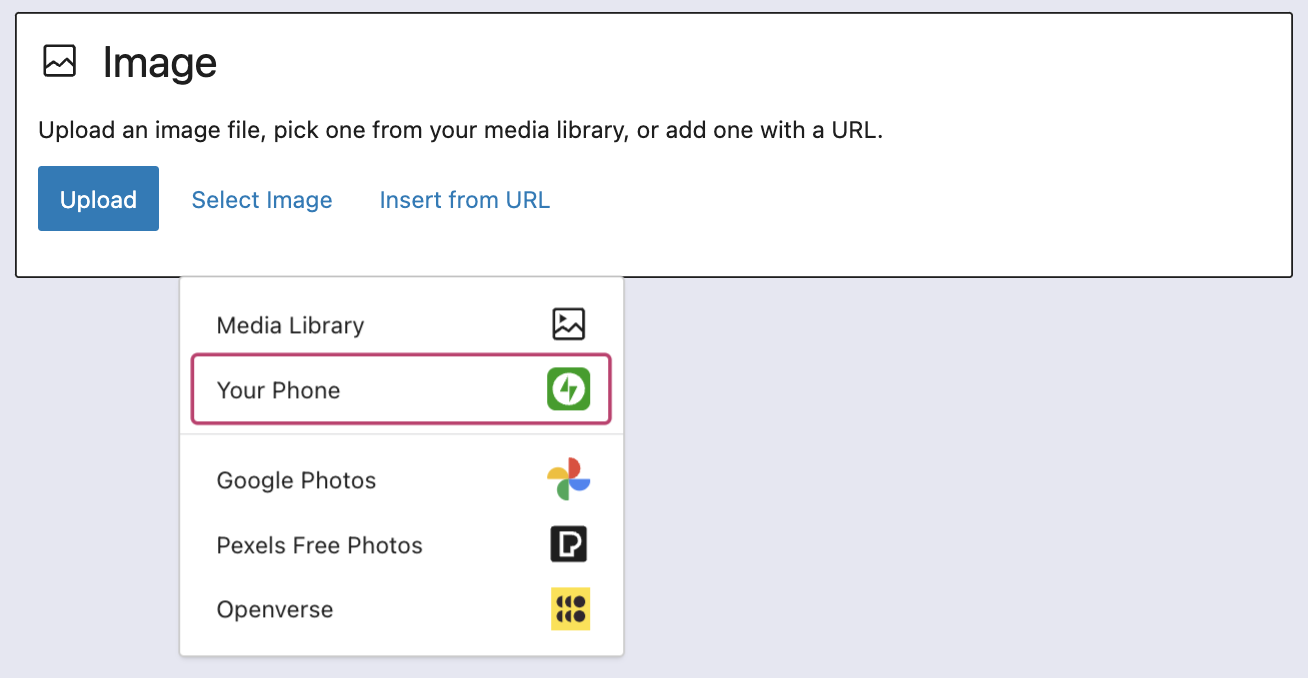
- Use your phone to scan the QR code: This will automatically open the Jetpack app and then your photo library.
- Choose your image(s): From there, simply click the image or images you wish to add to your post/page.
- Click “Add”: Watch your image(s) automagically appear in your desktop editor.
Check it out in action below:
We hope this will inspire you to snap even more photos and share them with the world.
 WordPress.com News
It looks awesome, one question: it converts .heic photos from IPhone to .jpeg seamlessly?
Woo! Amazing! Thanks
Super easy! I’ve been using and loving it! Thank you! 👍🏼👍🏼
Thank you for making JetPack/WordPress ever increasingly easy & fun to use!
It’ll be interesting to see if it is easier than emailing the pic to my self, and saving the attachments to the file where I keep them.
This is cool ~ but I’ve been adding images seamlessly from my handheld device for over six years! You guys rock 🙋
Q: if I use this feature, will the photos still go into WP media folder, and increase the size. Or are they only on the blog? Thanks for clarifying.
Yes, those photos will be uploaded to your site’s Media Library.
Awesome! Woohoo!
Did I read somewhere that uploading through the app optimises (reduces file size). I assume that’s the same in these cases?
Really pleased to see this and other user-centric improvements 👌
Yes, by default the Jetpack mobile app optimizes the image size before uploading the images. There is a way to turn this feature off in the app settings in case you want to keep the original size images.
Wow I did not know that? How would I check the jpg size on the pic after uploaded. Also? If I’ve already resized my image… does it change it even lower??
Thank you! What an awesome new tool! I feel like I just got a package on my front porch! A true gift!
Very nice job
thank ue
Thanks for the tips 😀
This makes things easier
No stress to build your website
That’s nice
Hi Good Morning I’m md delowar Hossain, earlier time I’m open the website.but im forget it the name & password can you Help me, I want return to my website please help me. Thanks.
Best Regards Delowar Hossain
Hey there! You can recover your account following the steps outlined in our help guild here: https://wordpress.com/support/account-recovery/. Hope this helps!
How can I add ads and earn money?, How can I earn money from visitors of my website?
You can add ads and make money on your site with WordAds, our official advertising program: https://wordpress.com/support/wordads-and-earn/
Awesome addition but I always resize my photos before uploading to keep room in my free allowance. It’d be great to be able to resize your photos for a smaller imprint in your allocated space within WordPress.
Hi Jeanne, I just wanted to share that the Jetpack app has optimization options where you can set a maximum image resolution and quality level for uploaded images. This not only impacts how much space is used, but how quickly images upload from your device.
If you weren’t aware of this setting there’s more information here!
I used it a little bit !
Great 👍
Yay!!!! So excited seeing this
Great post!
Thanks for the information. It’s helpful.
thanks for the very valuable info! 🙂
This is awesome 👏😊 can’t wait to use this feature 😊
Thank you for sharing, excited to use the new feature!