

Comment Likes are an easy way to acknowledge a comment on a website. This guide will show you how to Like others’ comments and control how Comment Likes appear on your site.
In this guide
Have a question?
Ask our Support AssistantIf comment likes are enabled, you’ll find the Like button beneath the comment’s text. The button is a star with the word “Like” next to it.
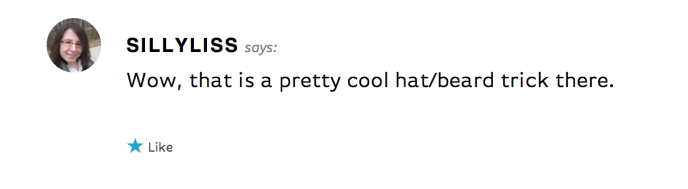
To like a comment, make sure you are logged into WordPress.com. Then, click the star to like the comment. The star color and text updates to show that you’ve liked the post:
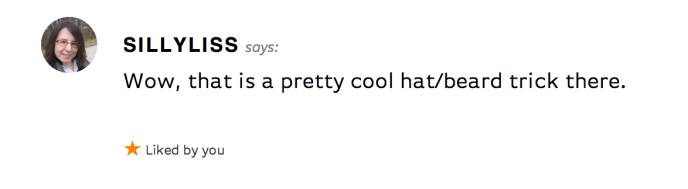
If you change your mind, click the star again to unlike the post.
If additional people like the comment, the text will update to indicate the number of likes. Click on the total count to display the names of the people who have liked the comment, along with their Gravatars:

Your Gravatar is clickable and linked to your profile. If you haven’t configured or updated your profile, see our Manage My Profile guide.
By default, all new WordPress.com blogs display the comment like button. You can turn them on or off following the steps below.
Note: Unlike Post Likes, Comment Likes cannot be enabled or disabled for particular posts or pages. Enabling Comment Likes will enable them anywhere comments appear on your site.
To turn Comment Likes on or off on a site:
- Visit your site’s dashboard.
- Navigate to Settings → Sharing.
- Tick or untick the box for comment likes.
- Click the “Save changes” button.

For sites on a Business or Commerce plan with plugins installed, navigate instead to Jetpack → Settings and click on the Discussion tab, where you can toggle on or off the “Enable comment likes” option.
Once you enable Comment Likes, you can control who is able to use them with the Disallowed Comments section. If you see Comment Likes coming from a spam account or other source you’d like to block, add the person’s email address, name, or username to the Disallowed Comments field.
To locate this section, go to the Discussion Settings page. You’ll find Disallowed comments near the bottom of that page:

Add the names and/or email addresses you’d like to block here, then scroll to the bottom of the page and click the “Save Settings” button. The Comment Like option will no longer be visible to these visitors.
