

If you misspell a domain or change your mind about the domain name you have registered with your site, you have some options to change it. This guide will walk you through how you can effectively change the domain name.
📌
A domain name cannot be edited. Instead, you can add a new domain to replace it. This guide will help you learn the best action to take, depending on your situation.
When you register a domain name, it becomes yours for the time you paid. If you want to change the domain address, you have a couple of options depending on how old the domain name is.
- If your custom domain is within our refund window (96 hours), you can cancel the domain and register a new one.
- If the domain is outside the refund window, you can register a second domain and set it as your site’s primary address.
Domain names are refundable within 96 hours of registration or renewal. Within the refund period, you can take the following steps to change your domain address:
- Check that the domain name you want is available to register by:
- Visiting your site’s dashboard.
- Navigating to Upgrades → Domains.
- Click the “Add a domain” button in the top right corner.
- Click on the “Search for a domain” option.
- Cancel the domain name you no longer want.
- Register the new domain name you wish to own.
Outside the 96-hour refund period, you can take these steps to change your domain name:
- Purchase a new domain by going to Upgrades → Domains and clicking “Add Domain to this site“. See domain pricing here.
- Once registered, make the new domain name your site’s primary address.
- Optional: You may cancel your original domain name or keep it as a secondary domain.
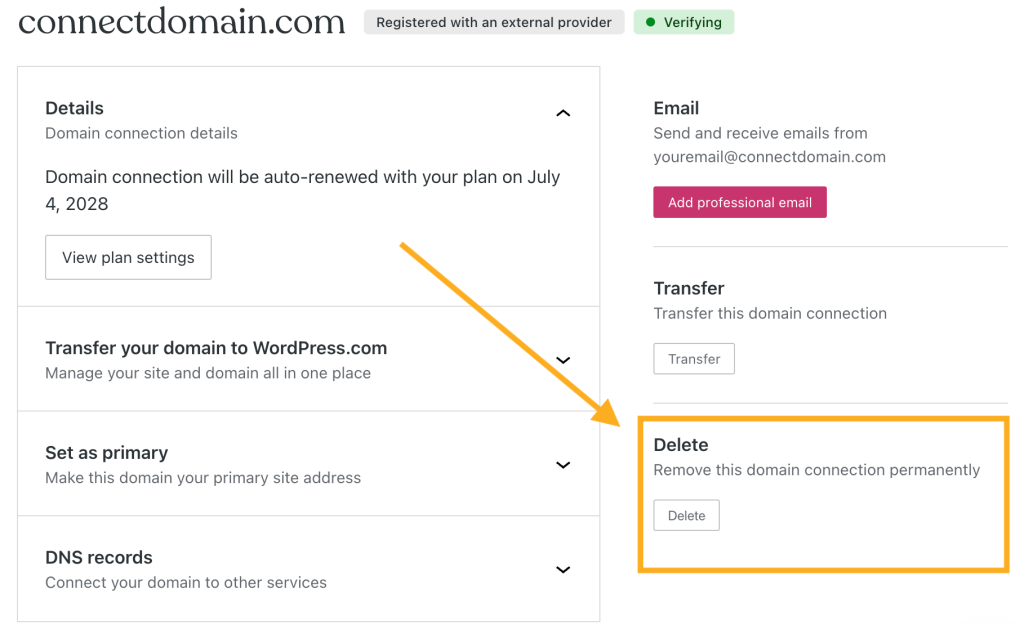
A connected domain name is a domain name that is registered with another provider that you then added to your WordPress.com site. You can change a connected domain name by connecting a new domain name.
You can then remove the original connected domain name by following these steps:
- Visit your site’s dashboard.
- Navigate to Upgrades → Domains.
- Select the connected domain name you wish to remove.
- Click the “Delete” button to remove the domain connection.
Your site’s primary domain name is the site address people will see in their browser’s address bar when they visit your site. If you have multiple domain names connected to the same site, you can change the primary domain name by following the steps in our guide on setting a primary address.
Every WordPress.com site has a default website address, such as example.wordpress.com. The change a site address guide explains how you can change the example part of the address to something else.
Plugin-enabled sites use the format example.wpcomstaging.com. The .wpcomstaging.com address cannot be changed. Instead, register, connect, or transfer a domain name to use with your site.
When you change the domain name on your website, keep in mind the following considerations that may apply:
- Avoid 404 errors: Keep the old domain name connected to the website for some time (just not as the primary address) so that anyone visiting the old domain name will be redirected to the new one.
- Preserve SEO health: Notify Google Search Console of your site’s domain name change using their “Change of Address” tool.
- Notify your audience: Let your users know about the domain name change via social media, email, a banner, and/or a blog post.
- Update backlinks: Reach out to any high-quality sites linking to your old domain name and ask them to update their links to the new address.
- Update custom tables: Some plugins store data in their own database tables and won’t automatically update to use your new domain name. Use a search and replace plugin or WP-CLI to update all instances of the old domain name in your database.
