

Jetpack Search is a powerful replacement for the default WordPress search feature. It provides higher-quality results and an improved search experience. This guide will show you how to add Jetpack Search to your site.
In this guide
Have a question?
Ask our Support AssistantJetpack Search can be used if your website has a search function. This is most commonly achieved by adding a Search block somewhere on your site. Also, many themes have a built-in search feature already.
When you activate Jetpack Search, it takes over your site’s existing search function. Jetpack Search uses advanced search capabilities to support millions of queries across millions of documents. It also indexes changes to your content in real-time. Thanks to filtering, sorting, and intelligent phrase search, your visitors can find what they’re looking for fast.
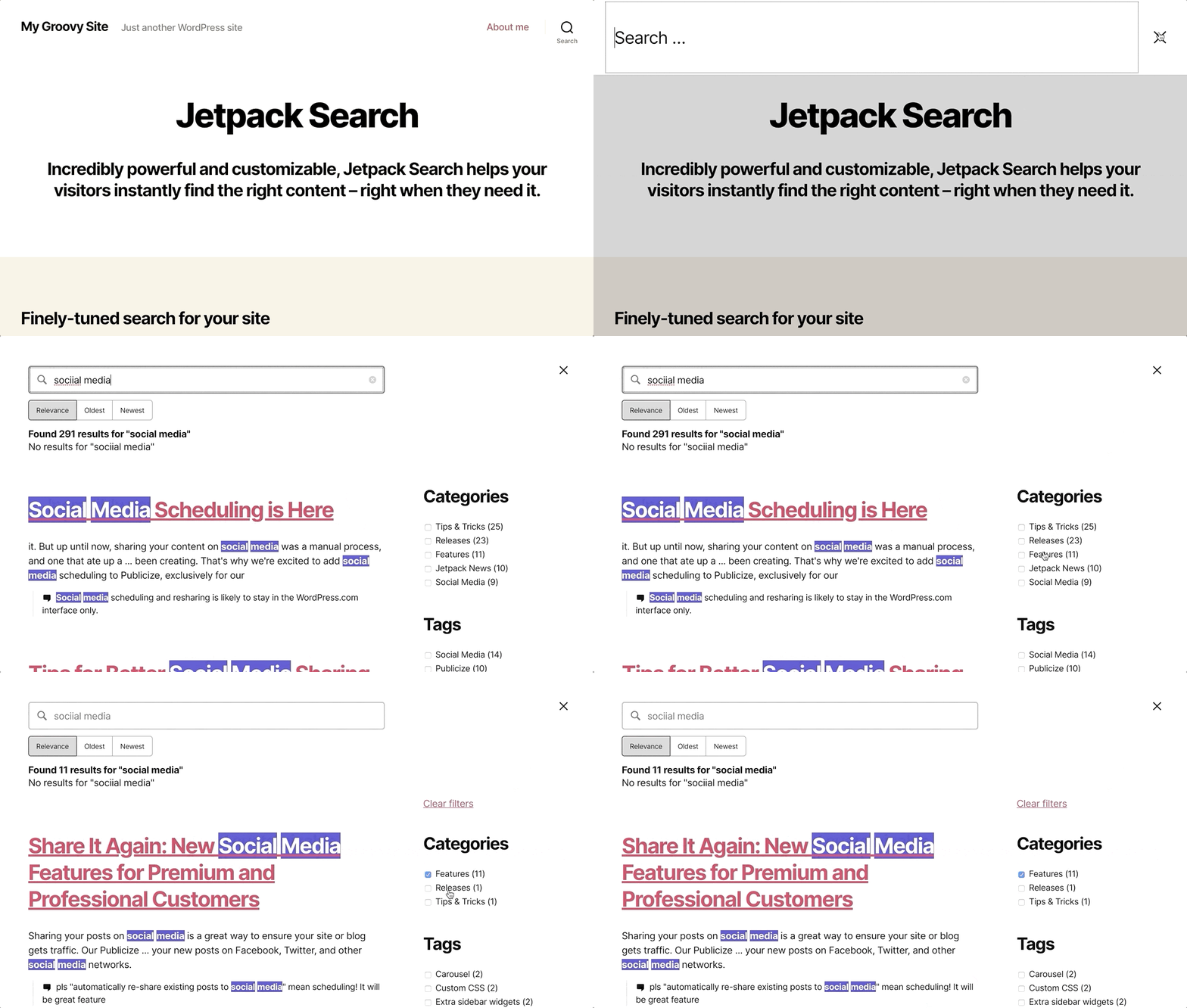
Jetpack Search indexes the following content:
- All public posts.
- All public pages.
- WooCommerce products.
- The metadata of the publicly accessible items in your Media, such as alt text.
Jetpack Search does not index draft pages or posts, private pages or posts, password-protected pages or posts, or PDF files in Media.
To enable Jetpack Search on your website, take the following steps:
- Visit your site’s dashboard.
- Navigate to Jetpack → Search in the left sidebar.
- Choose a plan and complete the checkout.
With Jetpack Search enabled on your site, you can navigate to Jetpack → Search and click on the Settings tab to choose your preferred search experience:
- Embedded: A search-as-you-type customizable search page built with blocks. Filters, sorting, and pagination — all themable in the Site Editor.
- Overlay search: A search-as-you-type overlay that opens from any search box on your site.
- Overlay search (blocks): In beta — a search-as-you-type overlay rendered from your Search blocks. Same filters, sorting, and store as Embedded, but opens over your existing pages.
- Theme: Keeps your theme’s search layout, with Jetpack Search making the results faster and more relevant behind the scenes. Search blocks are still available to drop into any page or template.
For details on customizing the look and feel of each experience, refer to the Jetpack Search guides on Jetpack.com.
You can also enable the following options:
- Site Chat: Let visitors ask your blog questions and get answers from your content.
- AI Agent Access: Let AI assistants like Claude and ChatGPT answer questions from your blog’s content on behalf of WordPress.com users who have opted in.
- Search suggestions: Show autocomplete query suggestions as visitors type, instead of updating search results on every keystroke.
Jetpack Search is free for sites with up to 5000 records or 500 search requests per month. You can upgrade to the paid tier for up to 10k records and/or requests per month.
You can view your records usage in Jetpack → Search in your site’s dashboard. In general, posts, pages, products, and custom post types count as records. Jetpack Search doesn’t count media library files unless they have their post status set to publish. Most attachments are indexed for free.
To view pricing and upgrade Jetpack Search:
- First, ensure Jetpack Search is enabled on your site.
- Visit your dashboard.
- Navigate to Jetpack → Search in the left sidebar.
- Click the “Upgrade Jetpack Search” link in the upper right corner.
For more information, visit the Jetpack Search billing guide.
