

Every page and post on your site has a web address (also called a URL or permalink). In this guide, you will learn how to change the last part of this address, called the slug.
This is an example of a link for a page:
https://yourgroovydomain.com/my-page/
This is an example of a link for a blog post:
https://yourgroovydomain.com/2024/01/01/first-blog-post
In the above examples, the last part of the URL address (known as the ‘slug’) is my-page and first-blog-post.
The slug is the last part of the link and refers to that specific page. WordPress automatically generates the slug when you give a page, post, category, or tag a title. For media items, the file name on your computer or device is used for the link.
If you want to change the default structure of your links (for example, removing the date from blog post links), visit our guide on how to change the permalink structure.
If you create a page called ‘Home’ that is not set as your homepage, the page will receive a slug just like any other page, e.g., https://yourgroovydomain.com/home. Once you set this page as your homepage, the slug will be removed, and the URL will change to just https://yourgroovydomain.com.
To change the slug, or the last part of a specific page or post’s link (URL), follow these steps:
- In your site’s dashboard, navigate to Pages or Posts.
- Click on the page or post you wish to edit.
- Open the settings sidebar.
If you do not have the sidebar on the right, click the Settings icon in the top-right corner to bring up the settings. This icon looks like a square with two uneven columns:

- Click the link next to the Slug section.

- Type what you want your new slug to be and click the X to close the pop-over. The slug section will update with the new text.
- Click the “Save” button or “Publish” button to save your changes.
URLs cannot accept certain characters like spaces, punctuation marks, currency symbols, and anything else that isn’t a letter or a number. In those cases, the special character is either replaced with a hyphen ( – ) or omitted from the URL entirely.
Certain words cannot be used as a permalink because the path is reserved for a folder on WordPress sites. These words include “avatar,” “bin,” “blog search,” “forums,” “gadgets,” “i,” “login,” “m,” “wp admin,” “wp content,” “wp includes,” “XML,” plus any 4 digits (for example, 2024).
When you change a slug for a page or post, WordPress.com creates a redirect automatically. Visitors using the old link will be sent to the new one, so existing bookmarks and shared links continue to work.
Note: These automatically created redirects only apply to slug changes for individual pages and posts. If you change your site’s permalink structure, a redirect will not be created.
No two pages, posts, or media items can share the same link address. If WordPress detects the same link being used more than once, it will add a number to the URL to differentiate it.
For example, if you wrote a post titled “Happy New Year”, the link would use happy-new-year for the last part of the URL. If you were to write a similar post with the same name the following year, the permalink would be happy-new-year-2 to ensure that the two posts have unique addresses.
To use an existing link for new content and prevent a number like -2, -3, or -4 from being added to the URL, you will change the link of the old content.
Follow these steps:
- Identify the existing content on your site that uses the URL:
- Visit your site’s dashboard and navigate to Pages, Posts, and Media.
- Use the search option to locate any existing content using the desired slug in its URL.
- Delete or update the existing content:
- If the content is no longer needed:
- Pages or posts: send the content to trash and then permanently delete it to completely remove it from the site’s database.
- Media: delete the image, video, or other media item (Media does not have a trash folder).
- If you want to keep the content but change its URL:
- Pages or posts: Edit the existing content’s permalink.
- Media: Use one of the options in this guide on how to reuse a file’s URL.
- If the content is no longer needed:
- Create the new page or post and assign the desired title. WordPress should use the URL slug without appending numbers, as it’s now available.
Category and tag pages have a permalink structure that looks like this: https://yourgroovydomain.com/category/category-name
In the above example, “category-name” is the slug for the category named “Category Name”. You can change the slug of a category or tag page by changing the name of the category or tag. Learn how to edit a category or tag to change the name.
On sites with the Business or Commerce plan, you can edit the slugs used for the URLs independent of the category or tag name.
Follow the steps below to view the URL slugs for category and tag pages.
- Visit your site’s dashboard.
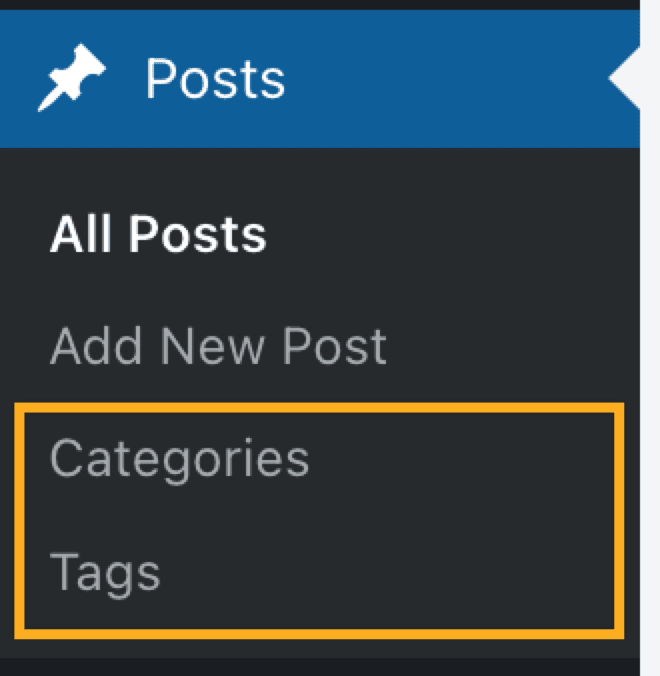
- Navigate to Posts → Categories or Posts → Tags.
- The Slug column will display the last part of the URL used for category and tag pages.

- Hover your mouse over a category or tag and click the “Edit” link.
- Look for the “Slug” field.
- Type the new text for your URL.
- Click the “Update” button.
