

In your website’s Reading Settings, you can configure options related to how content is presented and consumed on your site. This guide will explain each setting.
To visit the Reading Settings:
- Visit your site’s dashboard.
- On the left side, hover your mouse over Settings near the bottom.
- Select Reading.
Each setting found here is explained below.

These settings control what is displayed on the homepage and posts page.
Choose from the following options:
- Your latest posts: Display the default homepage design from your site’s theme, which may or may not be a feed of the latest blog posts.
- A static page: Choose a custom homepage you have created, as well as a separate page to display blog posts. Only published pages (not drafts) will show in these dropdown lists.
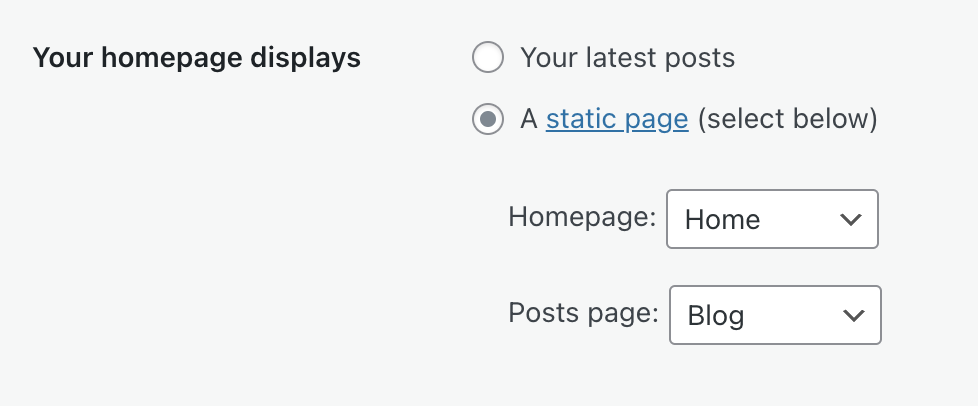
Click the “Save Changes” button to save your selected homepage.
This setting applies to the posts page you have chosen in Settings → Reading. This setting does not apply if using the Blog Posts block to display posts on a page manually.
Set the number of blog posts displayed per blog page. The default number of posts per page is 10. Keep in mind that setting a higher number here may make your blog slower to load.
These settings control what to include in the RSS feed of your site.
In the Syndication feeds section, you can set the number of blog posts to include in your site’s RSS feed.
With the option “For each post in a feed, include“, you can select whether RSS subscribers can read full posts in their RSS reader or only an excerpt and link to the full version on your site. Choose from:
- Full text: The entire contents of a post are included in the feed.
- Excerpt: The feed will display the excerpt added in the post editor, with the option to continue reading the rest of the post. If your post does not have an excerpt, the first 55 words of the post are shown in the feed instead.
These settings control who can see your website. Select from the following options:
Choose from three privacy options (or, launch your site):
- Coming Soon: Your site is hidden from visitors while you’re working on it.
- Public: Your site is visible to everyone.
- Private: Your site is only visible to you and any users you approve.
Choose to display a related posts section after blog posts with the following options:
- Show related content after posts: toggles the related posts section on or off.
- Highlight related content with a heading: Include the text “Related Posts” above the related posts section.
- Show a thumbnail image where available: Include the post’s featured image or another image in the related posts section.
- Show post publish date: Display the date the post was made public.
- Show post category or tags: Display the category and tags of the post.
You can also insert related posts anywhere on your site using the Related Posts block. The above settings do not affect this block, which has its own settings.
Control Infinite Scroll for themes that support the feature. Learn more about Infinite Scroll.
