

The Site Title defines your website’s identity in search engines and social networks. In this guide, you will learn how to edit your site title’s text and use the Site Title block to display your site title on your site.
You included a site title when you created your website. You can change the site title at any time using the following steps:
- Visit your site’s dashboard.
- Navigate to Settings → General.
- Replace the text in the “Site title” field with your new title.
- Click the “Save Changes” button at the bottom of the screen.
You can also edit the site title directly in the Site Title block, as described below. This will update the block everywhere it is used.
In most cases, your site title will already appear in the templates used on your site. If you removed your site title, or want to add it to another part of your site, you can add a Site Title block to a page, post, or template. In most cases, you’ll want to add your site title to a template so that it appears throughout your site.
To add a Site Title block to your site’s template, follow these steps:
- Go to your site’s dashboard.
- Navigate to Appearance → Editor.
- Click the right side preview to open the editor, or select a specific template to edit under Templates.
- Click the + block inserter (plus icon) and search for “Site Title”.
- Or, type /site title wherever you see “Type / to choose a block” to use a shortcut.
- Select the Site Title block icon.
- Click Save in the top-right corner to save your changes.
For more information, visit our detailed instructions on adding blocks.
After adding the Site Title block, you can click directly on the text of your title to edit it. However, if you change the text in the Site Title block, that will change your site title wherever it is displayed. If you want to add a header that has custom text, consider using a Heading block instead.
When you select the Site Title block, a toolbar of options will appear.
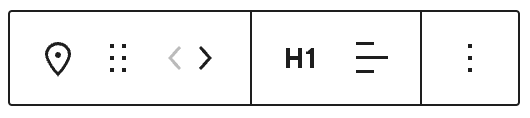
The block toolbar options allow you to:
- Change block type.
- Drag the block.
- Move the block up or down.
- Select a heading level from 1 to 6 or regular paragraph text. If you’re not sure what to set here, H1 is the most common choice for a site title.
- Align the site title to the left, center, or right.
- More options.
Learn how to align the site title with other elements in your site’s header.
When you select a block, you will find additional block settings in the right sidebar. If you do not see the sidebar, you may need to click the Settings icon in the top-right corner to bring up the settings. This icon looks like a square with two uneven columns:

The Site Title block includes the following settings:
- Make title link to home: Your site’s title will include a clickable link to the page you set as your homepage. Otherwise, the site title will not be clickable.
- Open in a new tab: When clicked, your site title’s link will open in a new browser tab.
You can also modify the appearance of your site title using the Site Title block’s block styles:
