

When you register a domain on WordPress.com, you can create a website to show with that domain. If you just want to claim a domain name to use later, this guide will show you how to register new domains without creating a website.
To purchase a new domain name (or multiple domain names) without creating a website for it, take the following steps:
- Visit wordpress.com/domains.
- In the search box, type your desired domain name.
- Click the “Register” button:

- The next screen will show you the domain names available to register. We support all major domain extensions including .com, .org, .net, and many more.
- Click the “Add to cart” button next to the domain(s) you want to own.
- Click the Continue button.
- If you’re not logged into a WordPress.com account, you will be prompted to log in or create one so you can manage your new domain.
- Complete the checkout screen to purchase and own the domain(s).
- After checkout, the Thank You page asks how you’d like to use your domain. Select one of the following options:
- “Start a new site”: Create and launch a new site on WordPress.com.
- “Add a mailbox”: Set up a professional email address for your domain.
- “Attach to an existing site”: Add the domain to a WordPress.com site you already have. This option appears only when you have a site that can use the domain.
- “Use the domain name only”: Keep the domain as-is and add a site whenever you’re ready.
The Thank You page also includes a “Migrate an existing site” link if you want to move a site from another host to your new domain.
💡
Be on the lookout for an email requesting you to verify your contact information for the domain. That email will be coming from
domains-help@wordpress.com
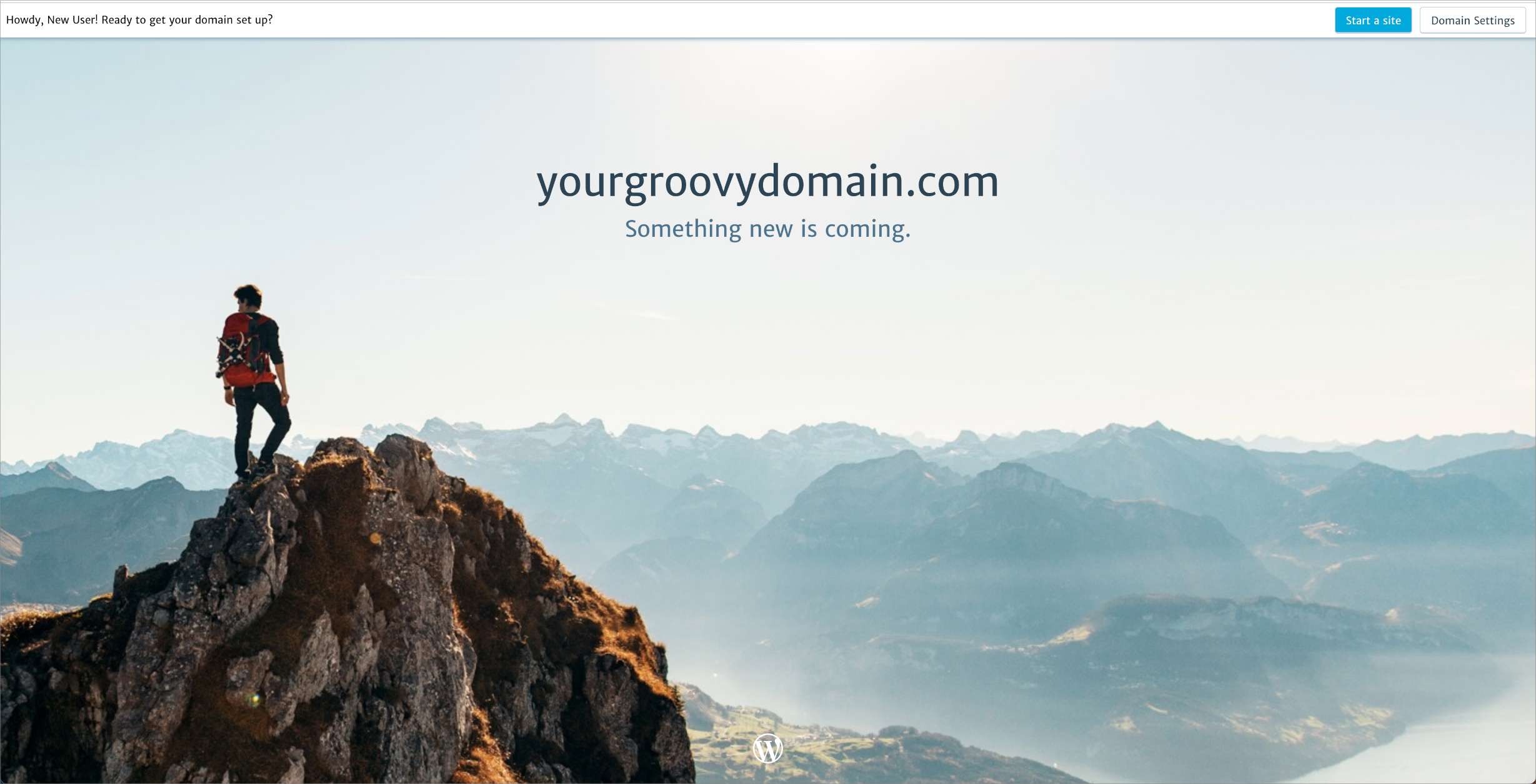
When visiting your domain that’s not connected to any site, visitors will see a landing page with your domain name and the message “Something new is coming.” Here’s how the landing page looks:
New domain registrations are usually ready within 30 minutes but can sometimes take up to 72 hours to become functional worldwide.
To confirm your new domain is active:
- Visit the Domains page in your Hosting Dashboard at https://wordpress.com/domains/manage

- Locate your new domain name.
- Check its status under the column labeled Status.
If it still says Activating, the domain is not yet ready to use. Once you see the status change to Active, then your domain is ready to be used.

To access the settings of a domain that’s not attached to any site, take the following steps:
- Visit the Domains page in your hosting dashboard at https://wordpress.com/domains/manage
- Click on your domain to complete any of the following actions from its overview page:
- Change the name servers.
- Update the DNS records.
- Set up domain forwarding.
- Modify the domain’s contact information.
- Create an email address for your domain from the Email tab at the top, or the Email section on the right sidebar.
- Delete the domain.
To attach the domain to a website in your WordPress.com account, visit your Domains list and:
- Click the “Add a new site” button to create a new website for your domain, or
- Click the “Attach to an existing site” button to use this domain with one of your existing WordPress.com sites.
To attach the domain to a site hosted outside of WordPress.com, change the name servers or update the DNS records using the information provided to you by your host.
