

When you purchase Professional Email for your domain name, you can manage the billing for your subscription directly through your WordPress.com account. This guide will cover how to manage billing for your subscription as well as how to remove or restore mailboxes.
The Professional Email subscription creates licenses that you can use to create custom mailboxes. You can manage your Professional Email subscription by following these steps:
- Click on your profile at https://wordpress.com/me.
- On the side, select the Purchases menu option.
- Navigate to the Professional Email subscription.
There, you can update the payment method for renewals, turn automatic renewal on or off, or cancel the entire subscription (all mailboxes.)
If you want to manage the billing for your Professional Email directly with Titan, contact our support. We will transfer the billing for your subscription to Titan.
You can remove an existing mailbox from your Professional Email subscription.
Follow these steps to delete an existing email address in your Professional Email subscription:
- Visit your site’s dashboard.
- Navigate to Upgrades → Emails.
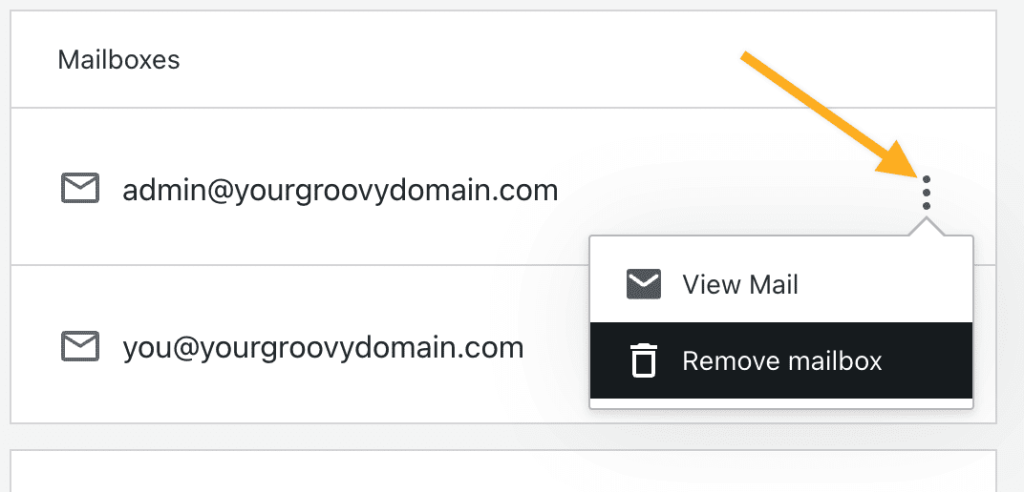
- Under Mailboxes, you will find a list of each Professional Email email address you have created.
- Click the three dots icon on the right side of the mailbox you want to delete.
- Click “Remove mailbox” option from the drop-down menu.
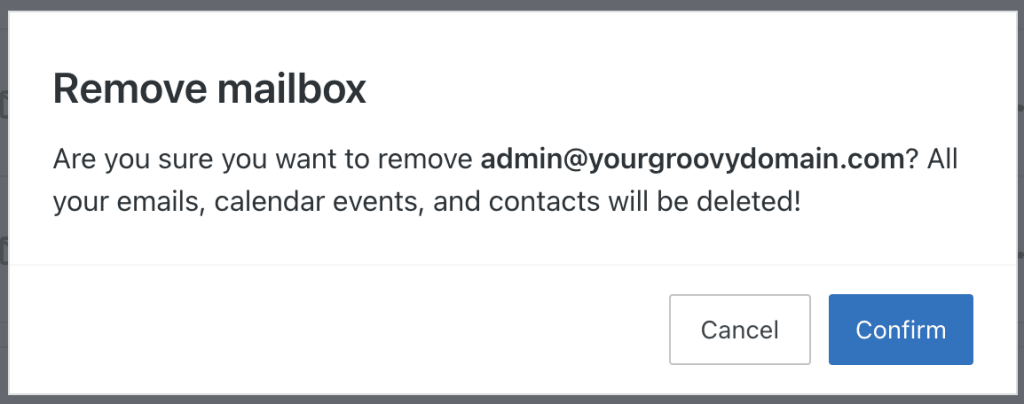
- After reading the warning “Are you sure you want to remove [email address]? All your emails, calendar events, and contacts will be deleted!” click the “Confirm” button to delete the mailbox.
There is no option within your account to restore an unsubscribed mailbox. If you wish to recover a Professional Email mailbox that you canceled or removed, please contact support for assistance.
If your Professional Email subscription expired and you wish to restore it, take the following steps:
- Purchase the subscription again using the same email ID (the part before the ‘@’ symbol) as before.
- Contact WordPress.com support.
